
Organeat | Organic Food Store Shopify Theme
By: Easital Technologies Ltd
Thank you for purchasing my theme. If you have any questions that are beyond the scope of this help file, please feel free to email via my user page contact form. Thanks so much!
Greetings
We, most importantly, want to thank you as our esteemed client for choosing Organeat for your website. We truly believe that Organeat’s layout will be one of the key factors that contribute to the progress of your business. Let’s explore the theme to better understand its features! Organeat has initialized the version to 1.0. This version is the new generation of Organeat, and we have built everything from scratch for six months. After release, Organeat might have bugs or issues, and we value your commitment to telling us so that we can fix and address the issue right away.
– From the Easital Technologies Ltd With Love ❤
Organeat | Fashion Shopify Theme Version 1.0 – User Guide
Organeat is an all-in-one Shopify Template with multiple layouts and styles that allow you to create different structures and satisfy any specific requirements for different kinds of fashion's store businesses.
With Organeat Version 1.0, we focus on key factors to build your successful store and offer enhancements including amending Organeat’s design to bring a smooth shopping experience.
Let’s discover tons of professional and creative design options as well as advanced features in our theme spotlight + full theme features below. Grab Organeat now to quickly create a modern and professional e-commerce website store.
Full Theme Features in Organeat
You can find the theme features of Organeat version 1.0 below:
Core Functionalities:
- Fully compatible with Shopify OS 2.0 (sections on every page)
- Mega menu
- Advanced featured product
- Featured collection
- Product tab
- Countdown timer
- Advanced built-in builder section
- Shipping spotlight
- Customer reviews
- Featured blog posts
- Product categories
- Advanced predictive search feature
- Compare
- Wishlist
- Quick shopping bag
- Quick add to cart
- Product quick view
- Product variant selection
- Google fonts
- Cross-device & cross-browser compatibility
- SEO & speed optimized code
Install Theme
Refer to our video for full instruction:
To install the theme please follow the below instructions:
- Please log in to your Shopify store. If you don't have an account, please sign up at the Shopify store.
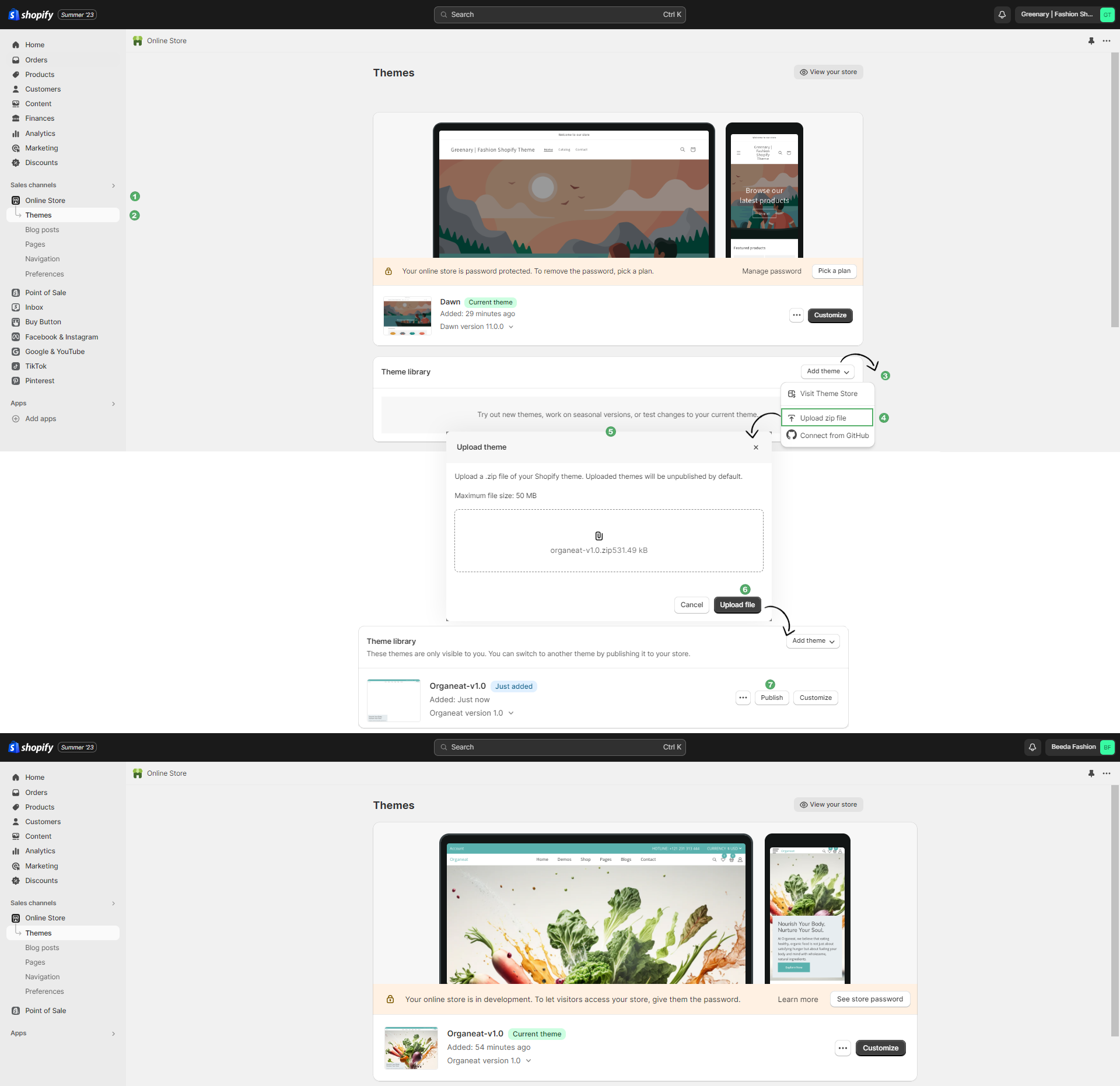
- From the left sidebar, go to Online Store 🠚 Themes.
- Click Add theme and choose the Upload zip file option from the dropdown box.
- From the Upload theme dialog display, click the Add file or drag a file option to upload the organeat-v1.0-theme-sourse.zip file.
- Click Upload file button.
- Wait until the uploading process finishes. Then click on the Publish button to activate the source to be live.
Remember: You have to buy a plan to remove the password protection from the shopify store. Learn More .
Install App
After successfully uploading and activating the theme, proceed to the installation and activation of several other free apps/plugins that are required in the following steps:
- Log in to the Shopify App Store.
- Search the desired app for installation and click on it.
- On the app listing page, click Add app.
- In your Shopify administrator account, authorize the usage of the app by clicking on the Install app.
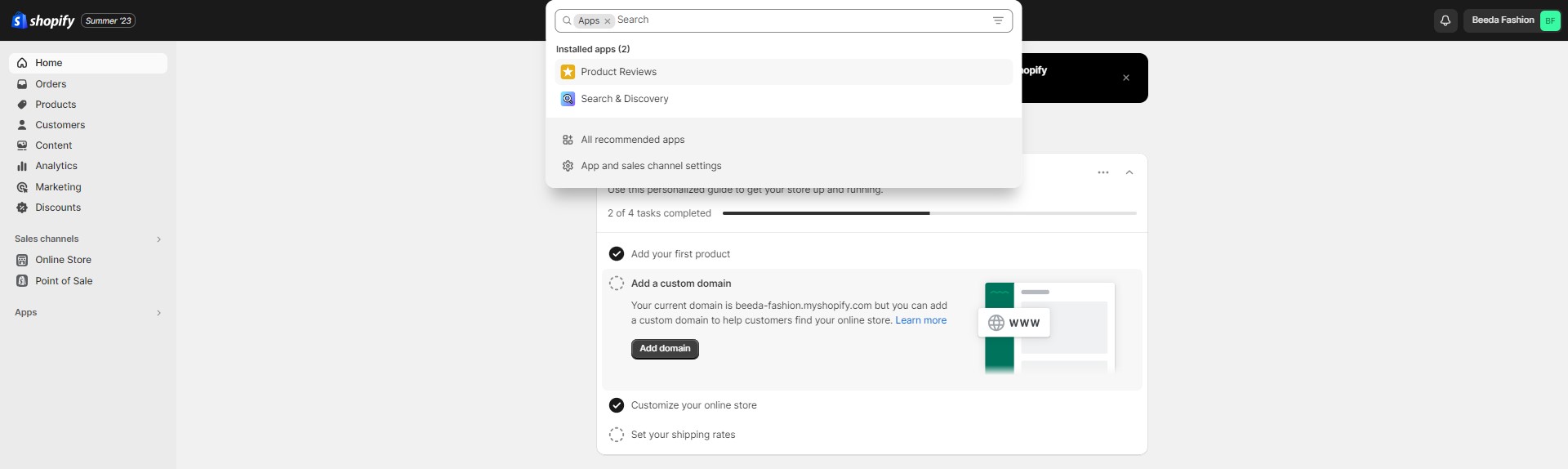
Info: The following two apps are needed to install when you use this theme. We tested the below apps on the theme and they work perfectly.
1. Product Reviews

Shopify Product Reviews allow you to add a customer review feature to your products. This provides a way for your customers to engage with you, as well as each other to encourage sales.
To get the full specifications of this App, please
hit the link below:
https://apps.shopify.com/product-reviews
2. Shopify Search & Discovery
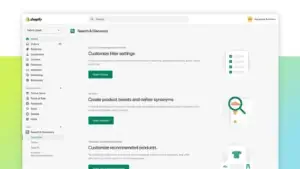
Shopify Search & Discovery app gives you more control over how customers discover your products. Customize search, filtering, and product recommendations, so that you can enhance your products’ relevance and increase sales.
To get the full specifications of this App, please
hit the link below:
https://apps.shopify.com/search-and-discovery
How to Insert Demo Data
Refer to our full video for instructions:
To set up the demo data for Homepage Settings, please follow the below instructions:
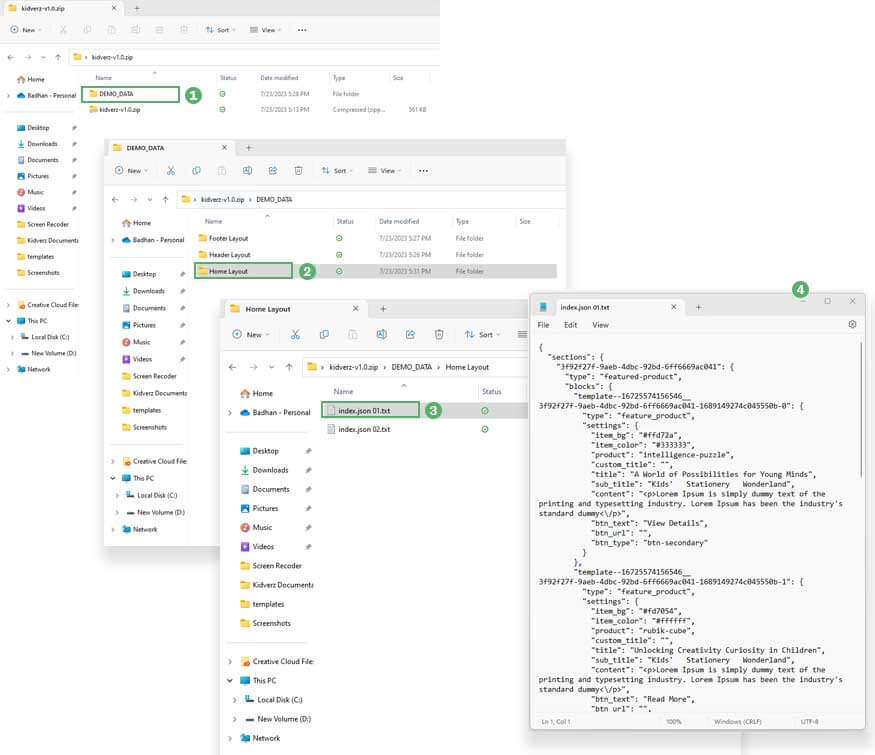
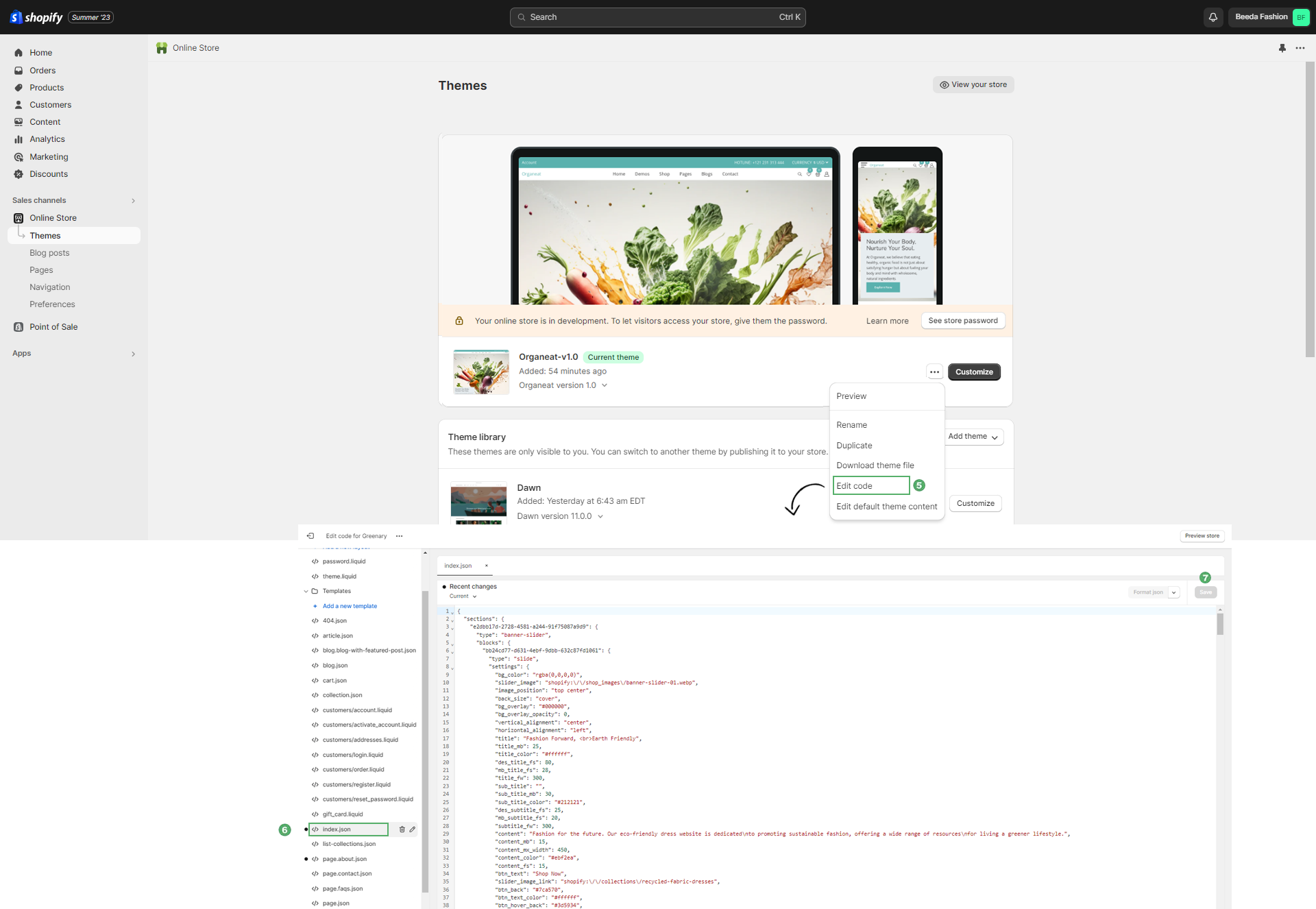
To set up data for the Home page layout 01, please follow the below instructions:
1: Insert Demo Data for Home Page Layout
- Open the downloaded theme folder named organeat-v1.0.
- In the DEMO_DATA folder you will find the folder named Demo
- In the Demo folder, you will find the file named index.json.txt
- Open the “index.json.txt” file in the text editor.
- SELECT ALL and COPY.
- From your Shopify admin, go to Online Store 🠚 Themes 🠚 More options.
- Select Edit code from the dropdown.
- Find folder named Templates Open the file named index.json SELECT ALL and DELETE then PASTE the copied preset from the external file.
Remember: By default, you'll get a pre-designed Homepage layout called index.json.txt
Upload Settings Data for Theme Settings
To set up the demo data for Theme Settings, please follow the below instruction:
- In the DEMO_DATA folder you will find the folder named Demo-01
- Open the “settings_data.json” file in the text editor
- SELECT ALL and COPY
- From your Shopify admin, go to Online Store 🠚 Themes 🠚 More options
- Select Edit code from the dropdown
- Find folder Config Open file settings_data.json SELECT ALL and DELETE
- then PASTE the copied preset from the external file
- Click Save
Please findout the below data table:
| Page Name | JSON Template | Demo Data (JSON with .txt format) |
|---|---|---|
| Homepage | index.json | index.json.txt |
| Setting Data | setting_data.json | setting_data.json.txt |
| Product Page | product.json | product.json.txt |
Changing your store currency
The currency used in your Shopify admin, which is also the currency you set your product prices in and is utilized in your reports, is known as your store currency. However, modifying your store currency could have an impact on your reports.
When you modify your store currency, it not only alters the currency used for pricing and reporting purposes, but also affects your primary market, which is determined by your store currency. To understand how your primary market could be impacted by a change in store currency, you may refer to additional resources.
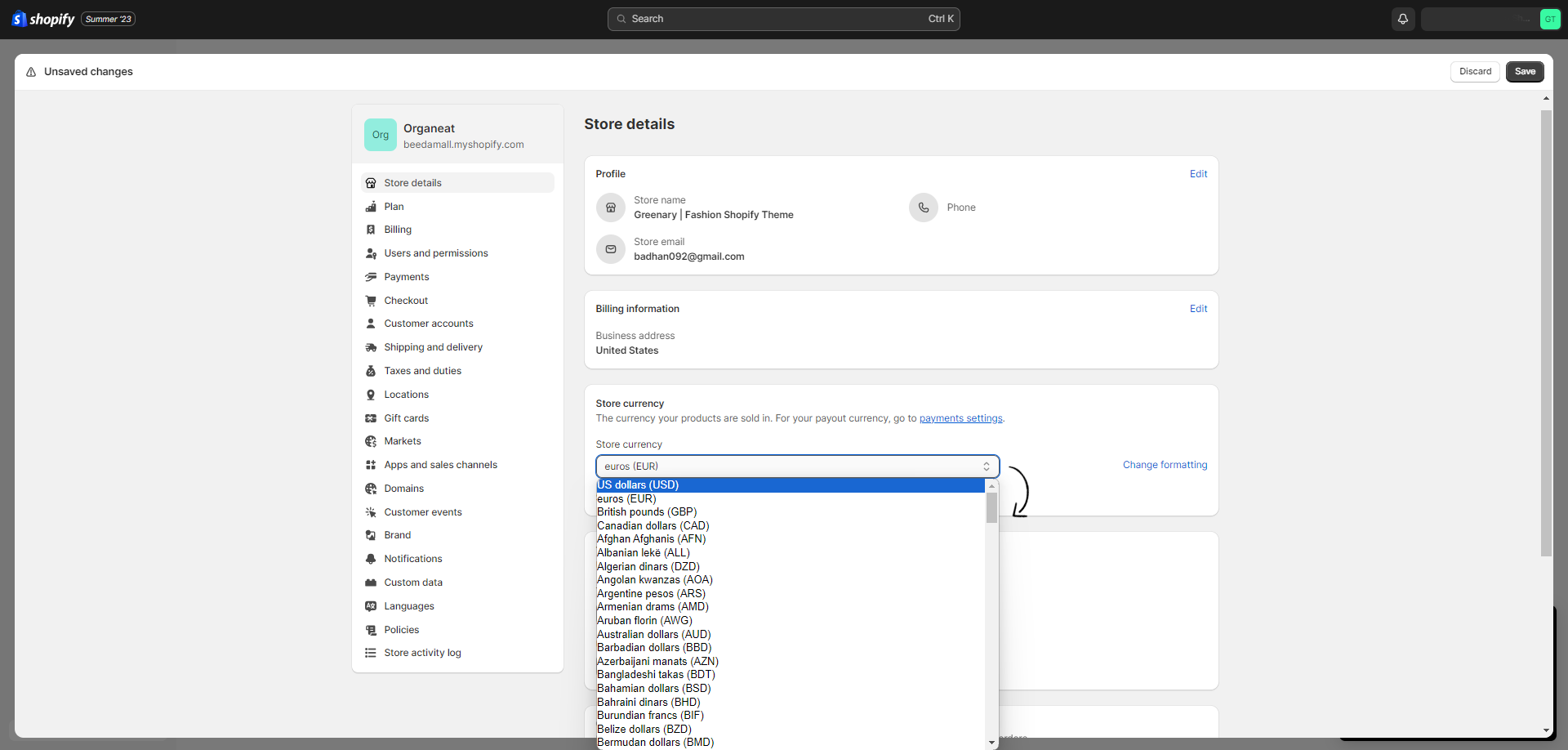
To view or modify your store currency, you can navigate to the Store currency section within the Store details settings page.
Follow these steps to change your store currency:
- From your Shopify admin, go to Settings > Store details.
- In the Store currency section, select your new store currency from the list.
- Click Save.
Payment Configuration
Understanding the payment process is an important step toward getting the payment from your customers. When a customer checks out, they can choose to pay for their order using any of the methods that you’ve enabled in the Payment providers area of your Shopify admin. You can enable a variety of payment methods using Shopify.
There are a few different things to consider when you’re choosing which payment methods to offer. If you want to let your customers pay using a credit card, then you can use Shopify Payments or a third-party provider.
There are also several ways for customers to pay online without using a credit card, like PayPal, Meta Pay, Amazon Pay, and Apple Pay. You might also want to accept additional methods of payment like cryptocurrency.
Follow these steps to configure your payment method:
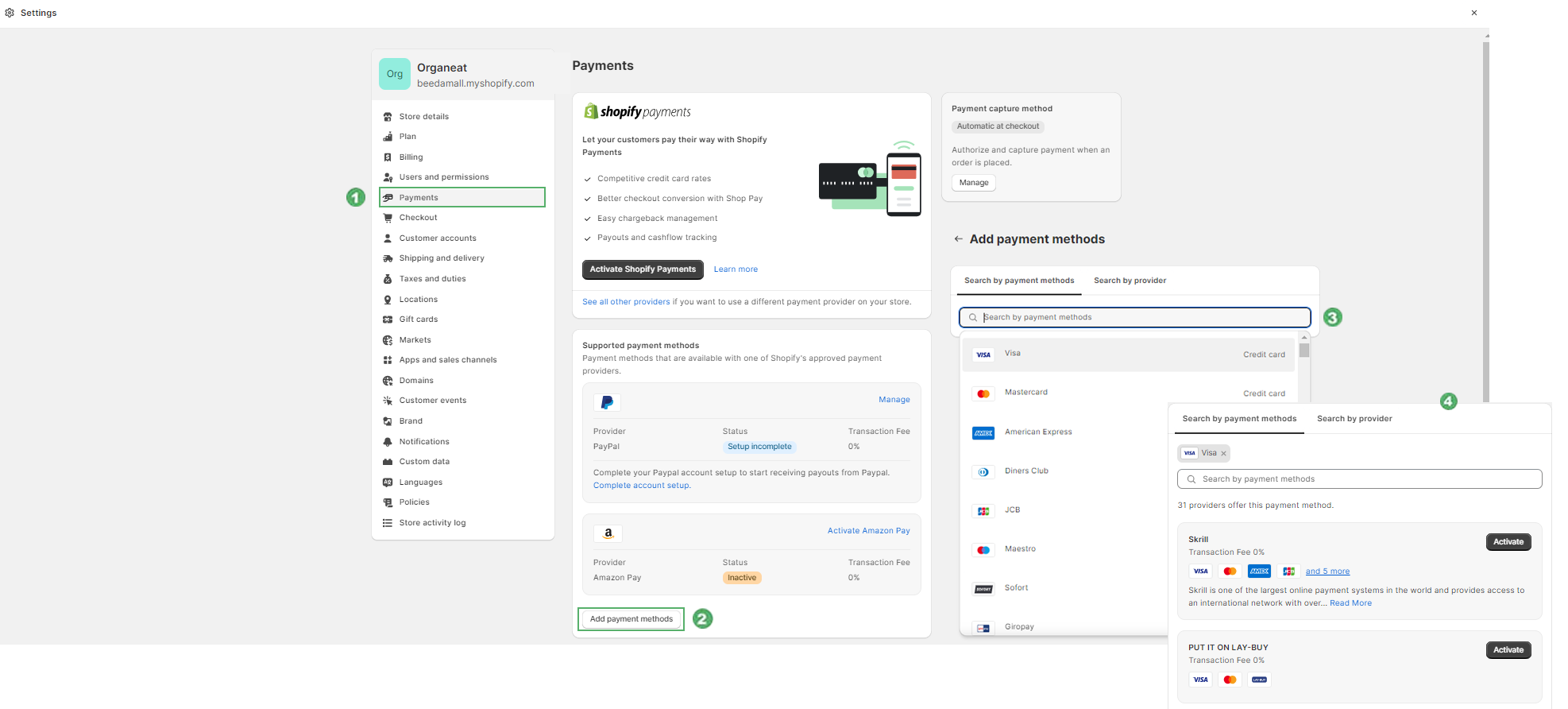
- Go to Store admin > Settings > Payment.
- In the Additional payment methods, click Add payment methods.
- You can select different payment methods from Search by payment methods.
- Activate your desired payment method
If you sell subscription-based products, then you need to use Shopify Payments as your primary payment gateway.
General
- From your Shopify admin, go to Online Store > Themes.
- Then click on the Customize button
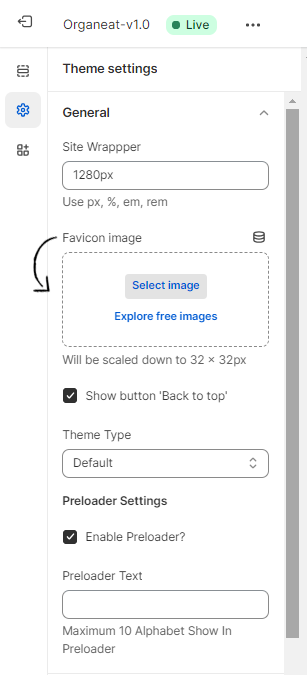
- Click Theme settings > General.
1. Container
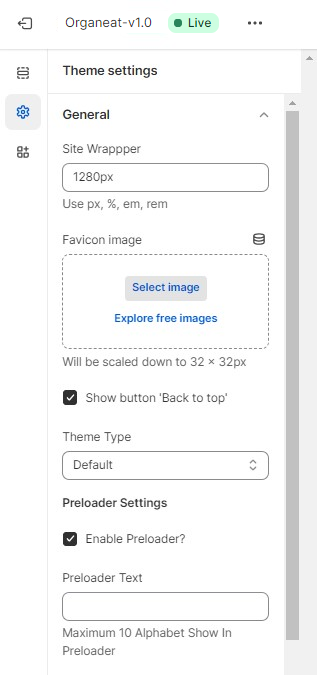
Container: You can modify the width of the Container. You can customize the width by px, %, em, rem.
You can enable or disable the Back to top button and Preloader.
2. Favicon
You can use a free favicon generator website to create a custom favicon, or you can create one of your own. There are several free favicon generators available online.
The ideal size for a favicon is either 16×16 pixels or 32×32 pixels. If your favicon file is too large, then it will be reduced to 32×32 pixels when you upload it to Shopify.
Follow these steps to add your favicon file:
- In the Favicon area, click Select image
- Add alt text to your favicon image
- Click Save
Colors
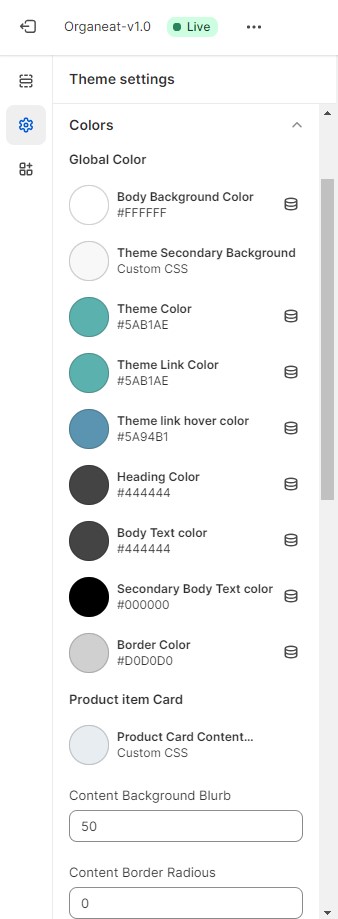
You can change the color for the various elements of the theme through the following steps:
- From your Shopify admin, go to Online Store > Themes
- Then click on the Customize button
- Click Theme settings > Colors
- Click Save
Collection Filter
Collection filter is a tool that helps customers refine their search for products on a Shopify store. It allows customers to filter products based on specific criteria, such as size, color, price, or collection.
Follow these steps to set up this tool:
- From your Shopify admin, go to Online Store 🠚 Themes
- Then click on the Customize button
- Click Theme settings 🠚 Collection filter
- You can enable or disable the Counter in the Collection filter theme setting
- You can also edit the title color
- Click Save

Product Card
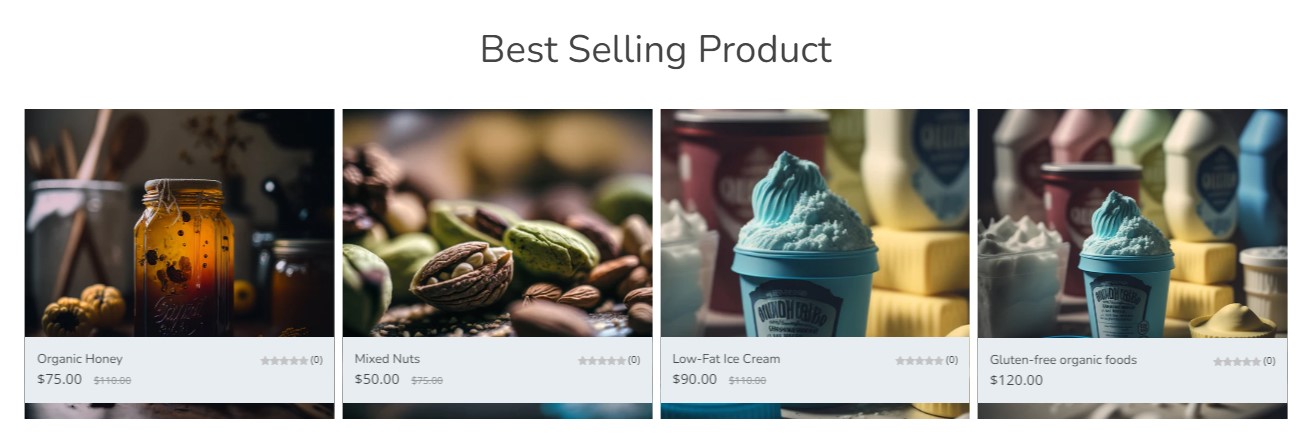
Product card is a graphical representation of your products that allows customers to quickly and easily see important information about the item, such as price, image, and product details. In a Shopify theme, a Product card is an essential part of the design and can play a major role in the success of a store.
Follow these steps to add this feature:
- From your Shopify admin, go to Online Store > Themes
- Then click on the Customize button
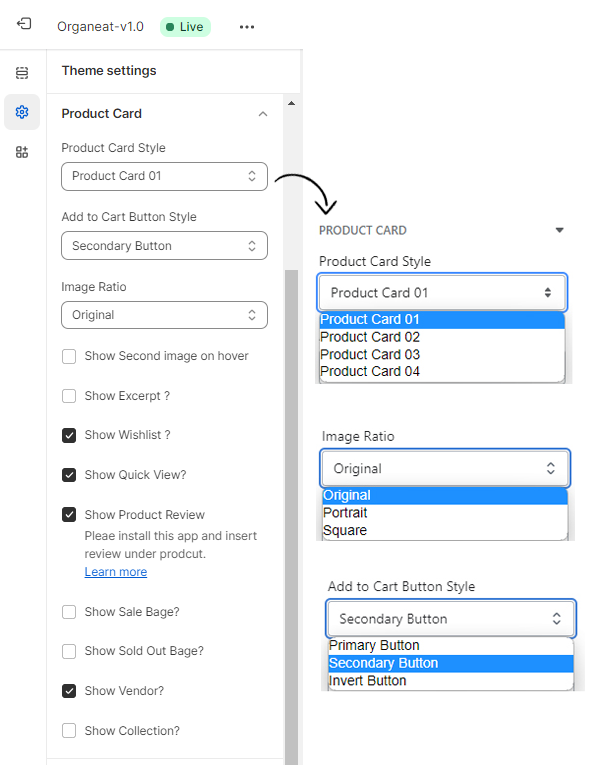
- Click the Theme settings > Product card
- You can select or deselect the Cart button style, Secondary image on hover, wishlist, Quick view, Product review, Sale badge, Sold out badge, Vendor and Collection
- You can change the Add to cart button style by “Primary , Secondary and Invert buttons“
- Also you can set the image ratio by original, portrait and square ratio
- Click Save
Change Theme Style
Changing your theme’s style will affect both the settings and the look and feel of your store.
Remember: Some settings will be lost when you change your style, but you will not lose any content from your store
Typography
Typography is an essential design element that can greatly impact the look and feel of a website or any type of content. It refers to the style, arrangement, and appearance of text, including factors such as font, size, line spacing, and color.
Follow these steps to set up the typography of your website:
- From your Shopify admin, go to Online Store 🠚 Themes
- Then click on the Customize button
- Click Theme Settings 🠚 Typography
- You can customize it in the global font setting like Custom google font, Font size, Font weight, and Font line height
- You can control the Body text font family, Heading font family, Heading letter spacing, Heading text transform, and Menu font family
How to Set Up Google Font?
Thousands of open-source fonts are free to access through Google Fonts.
Follow these steps to set up a Google font:
- Search Google fonts
- Copy name of the font which you want to choose
- Paste text which you have copied to Body Google font textbox in Font name settings
- You can control the Body font size, Font weight and Line height
If you need to load more weight, you can input the Font weight like this: 200, 300, 400, 500, 600, 700, 800 .
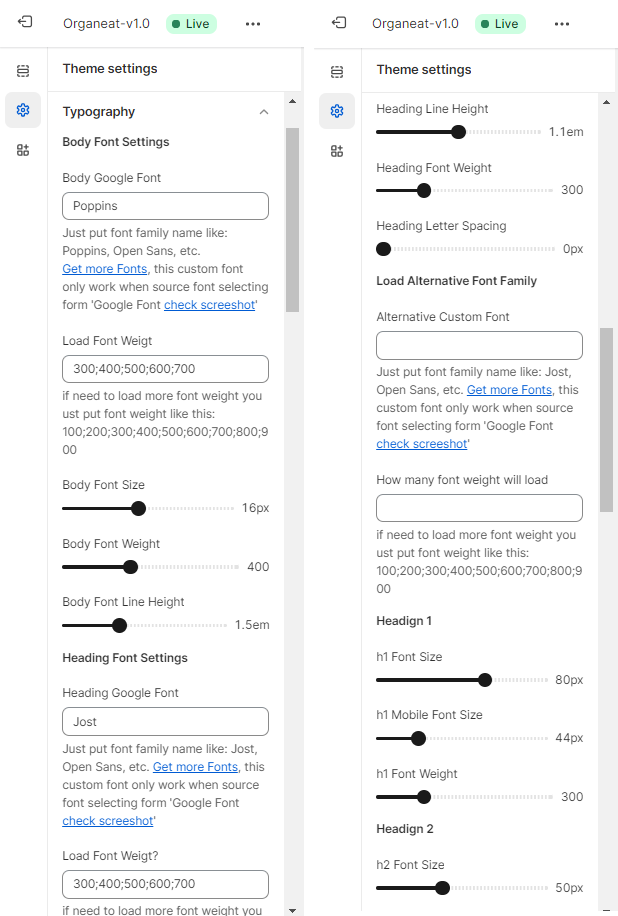
- You can customize the Heading font from Heading 1 to Heading 6 and modify the Font name, Font size, Font weight and Letter spacing
- We also let you control the Heading size in Desktop and Mobile versions by just inputting the font size in px, e.g., 60 px
- You can also customize the Font size and Font weight of your Product card and Product price title
- Collection and Article card titles are also customizable
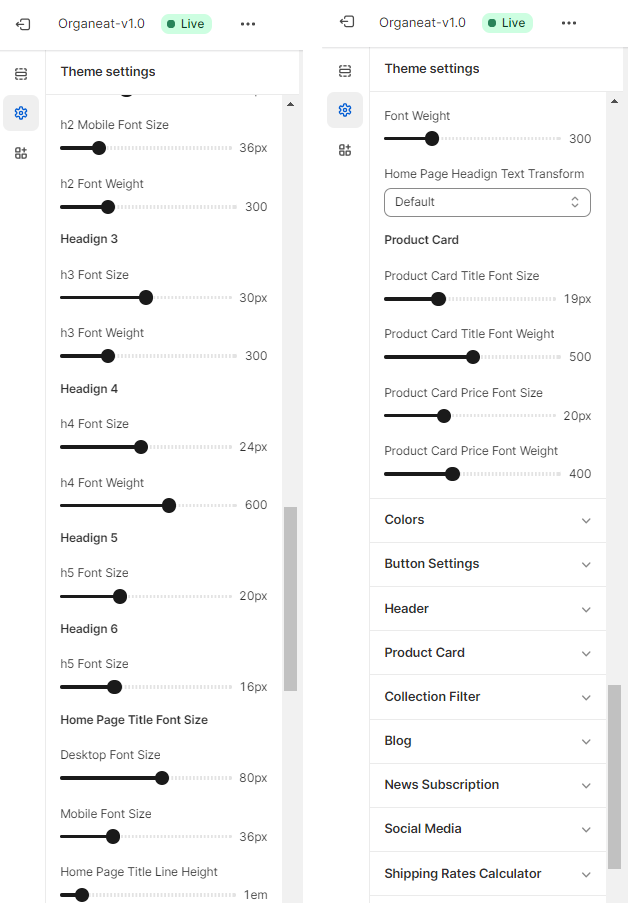
Font And Text Typography Settings
| Select Font Type | Select which font family to apply on the heading and titles. |
| Font Size | Set the font size to apply on the heading, and titles ranging from 10px to 100px. |
| Font Weight | Set the font weight to apply to the heading and titles. |
| Font Style | Turn the heading, and titles to be either normal, capitalized, uppercase, or lowercase. |
| Text Transform | Set the font style on the heading, and titles to be either normal, italic, or oblique. |
| Line Height | Set the line height to apply to the heading and titles. |
| Letter Spacing | Set the spacing between letters to apply to headings and titles. |
| Border Height | Set the height of the border ( underline ) of the heading, and titles. |
Checkout
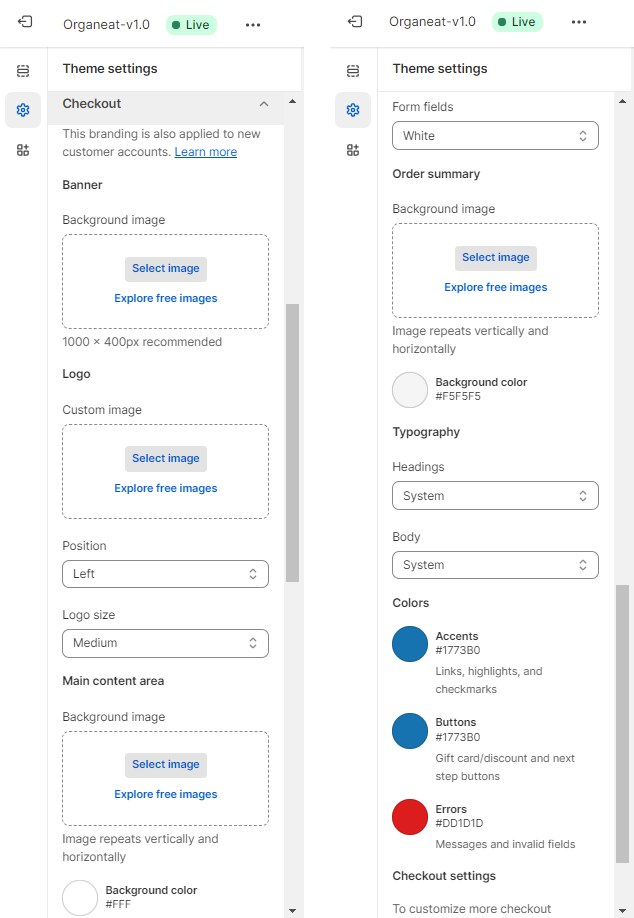
Checkout allows customers to set Custom banners, Background images, and Colors. Organeat allows customers to design the Checkout page.
Follow these steps to customize the Checkout page:
- From your Shopify admin, go to Online Store > Themes
- Then click on the Customize button
- Click Theme settings > Checkout
- You can set the Custom banner image, Logo, Position and Background color
- Click Save
Organeat allows customers to design the Checkout page.
Shipping Rates Calculator
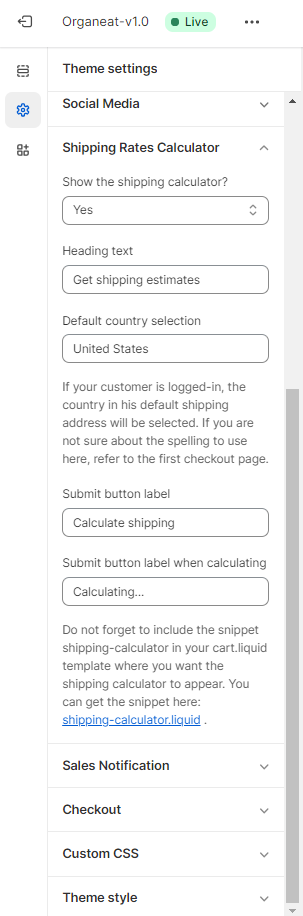
Shipping rates calculator shows a progress bar with a message when customers add more items to their shopping carts.
Follow these steps to customize your Shipping rates calculator:
- From your Shopify admin, go to Online Store > Themes
- Then click on the Customize button
- Click Theme settings > Shipping rate calculator
Breadcrumb
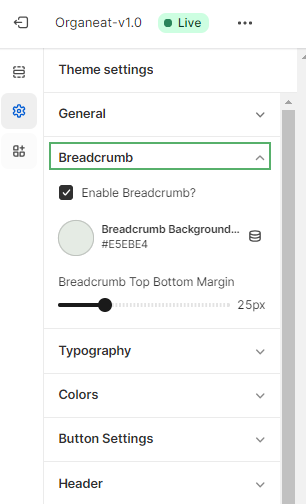
Breadcrumb is an important navigational tool that helps customers easily locate their current position within a website. Breadcrumbs are a set of links that appear at the top of a webpage, indicating the sequential path that the user has taken to arrive at their current location.


For example, if a customer is browsing a specific product category on an online store, the breadcrumb may appear as follows: Home > Products > Category name. This lets the customer know that they are currently viewing products within a specific category and allows them to easily navigate back to previous pages or categories
Follow these steps to customize this feature:
- From your Shopify admin, go to Online Store > Themes
- Then click on the Customize button
- Click Theme settings > Breadcrumb
- You can enable and disable Breadcrumb, change the Breadcrumb background color and also manage the Breadcrumb spacing
- Click Save
News Subscription
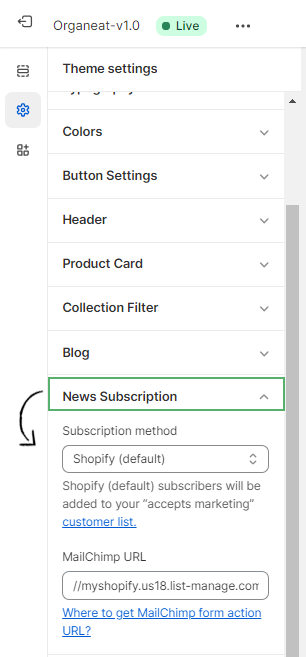
News subscription helps store owners to stay in touch with their customers and keep them informed about new products, promotions, and updates. News subscription can be customized to match the store’s branding and style, allowing it to seamlessly integrate into the website.
Here are the following steps for integrate the News subscription :
- From your Shopify admin, go to Online Store Themes
- Then click on the Customize button
- Click Theme settings > News subscription
- You can set the Subscription method by selecting Shopify (default) or Mailchimp
- After that, you have to set the Mailchimp URL link
- You can also enable the Newsletter popup
- Click Save
Blog
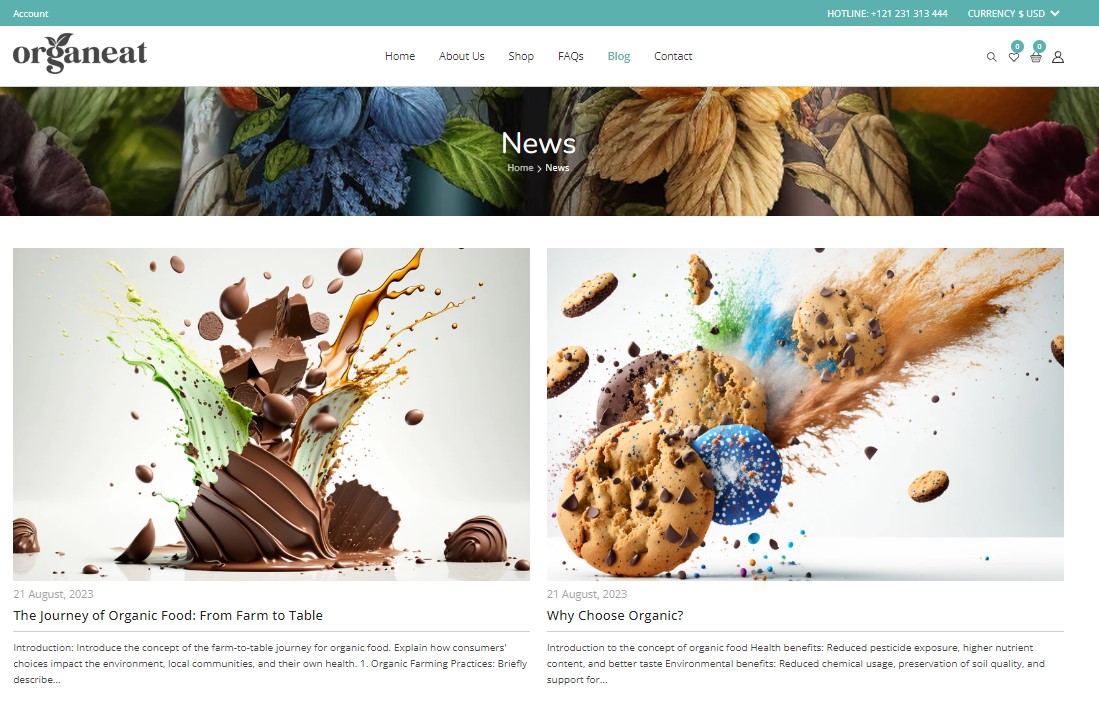
Shopify’s blog platform allows for easy management of blog posts, comments, and categories. Store owners can also customize the layout and design of this section to match their store’s theme, ensuring a seamless user experience.
Follow these steps to integrate this feature:
- From your Shopify admin, go to Online Store > Themes
- Then click on the Customize button
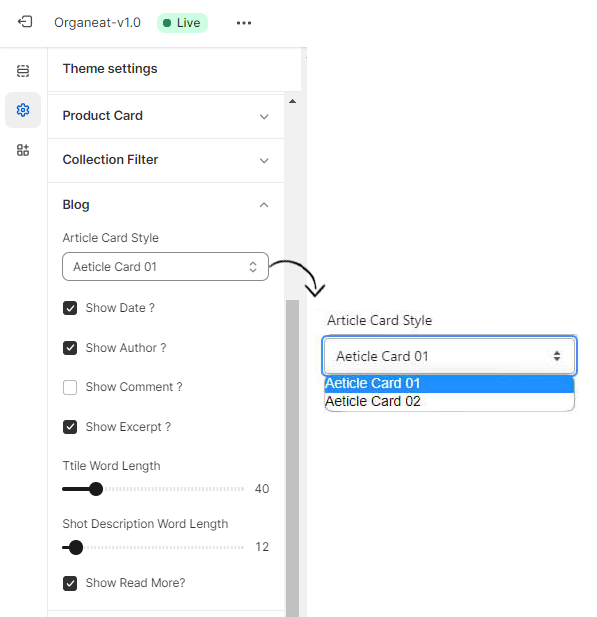
- Click Theme settings > Blog
- You can change the Blog style by selecting the Article card style
- You can enable or disable the Date, Author and Comment section
- Click Save
Sales Notification
Sales notification is a powerful marketing tool that can help to create a sense of urgency and encourage customers to make a purchase. When other customers see that a product is selling quickly, they may be more likely to make a purchase to avoid missing out.
Here are the following steps for integrating the Sales notification:
- From your Shopify admin, go to Online Store > Themes
- Then click on the Customize button
- Click Theme settings > Sales notification
- You can enable or disable the Sales notification by marking the checkbox
- You can customize the Sales notification by aligning the Sales notification, Product settings, Location, and Time
- Click Save
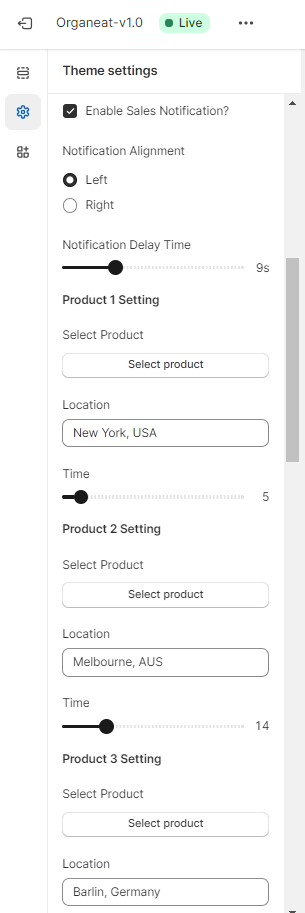
You can set at most 10 products in the sales notification setting.
Collection and Search Filters
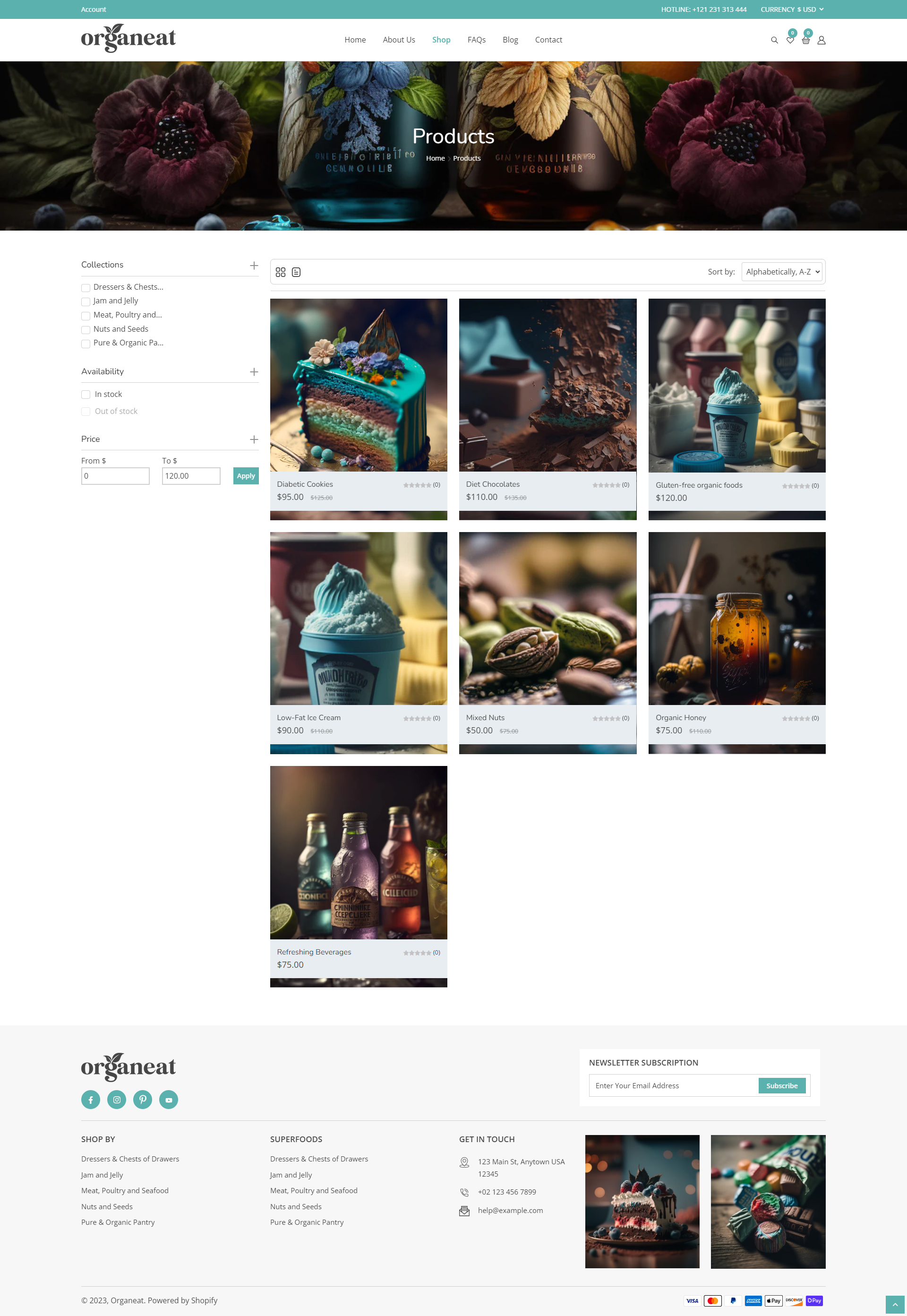
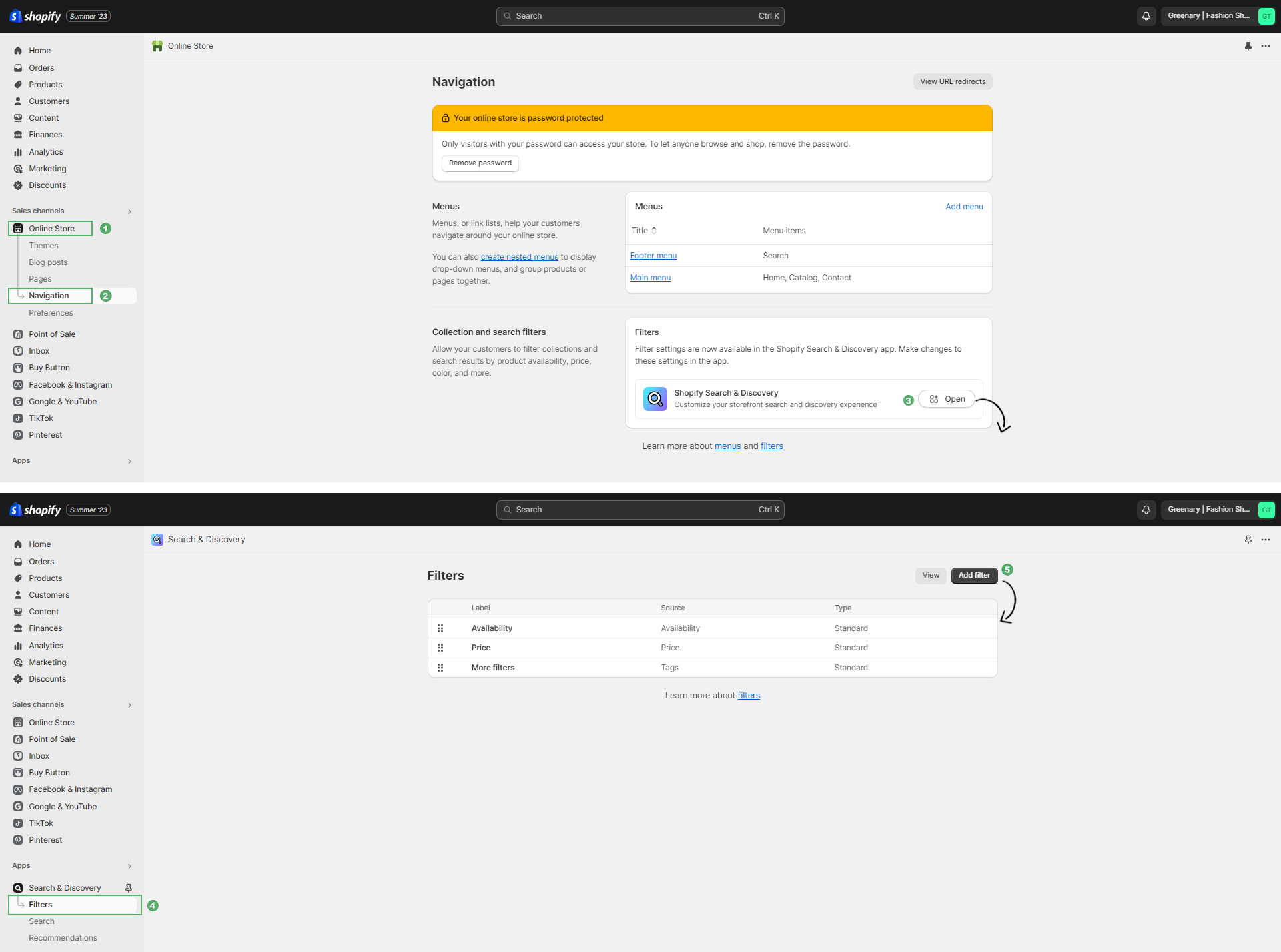
By using Collection and search filters, customers can easily find the products they want, which can lead to increased sales and improved customer satisfaction.
To add this feature, you will need to follow these steps:
- Login to your Shopify admin panel and navigate to the Online Store section
- Click on the Navigation to access the Collection & search filters option
- Configure the filters by selecting the filter types you want to use, such as Color, Size, Price, and Brand
- Customize the look and feel of the filters to match your store's branding and design.
- Save the changes and preview your store to ensure that the filters are working correctly.
Be sure to check the theme documentation or contact the theme developer for assistance if you are having trouble adding filters to your store.
Button Settings
Organeat theme allows customers to customize the Button background color, Font size, Border radius, Border width, and Button spacing.
Here are the steps that you need to follow to set up this feature:
- From your Shopify admin, go to Online Store > Themes
- Then click on the Customize button
- Click Theme settings > Button Settings
- Click Save
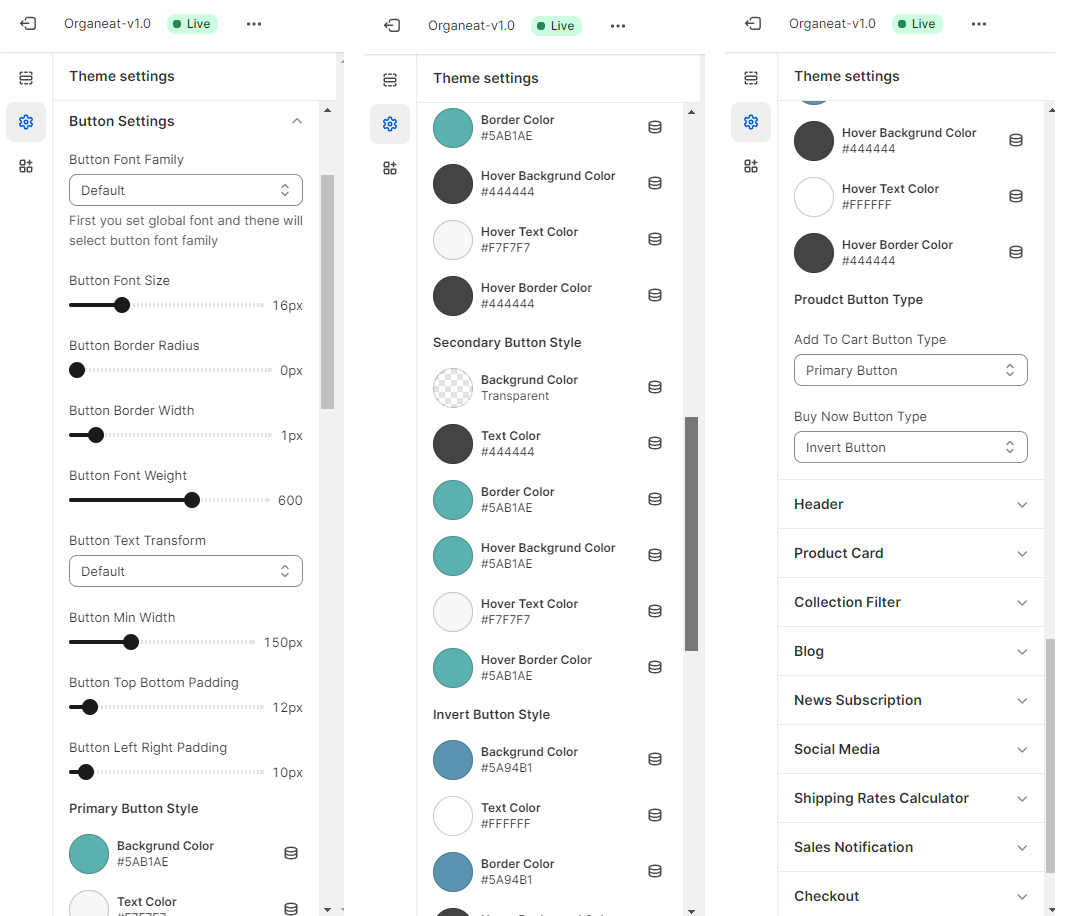
Organeat theme allows you to set the Primary button style, Secondary button , and Invert button style.
Header
Header is a crucial element of any Shopify theme as it provides the first impression to the website visitors. Shopify’s theme editor allows for customization of the Header, including its Size, Color, Font, and Layout. By adjusting the Header’s design, store owners can create a unique look and feel that matches their brand and attracts visitors to their website.
Follow these steps to integrate this feature in your store:
- From your Shopify admin, go to Online > Store Themes
- Then click on the Customize button
- Click Theme settings > Header
- Organeat allows you to set the SVG Logo options
- You can change the Menu font family by selecting the dropdown style
- Organeat also allows you to set the Sticky position style as a Always sticky, Scrollup sticky, and Scroll down sticky
- You can enable or disable the Cart, Currency and Search options
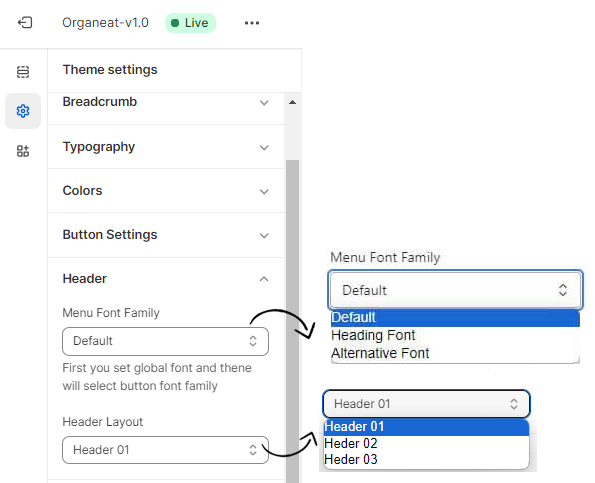
The images below show premade styles for the Header section:

Organeat theme editor allows for customization of the Header, including its Size, Color, Menu, Font, and Layout. A well-designed Header can also improve the user experience by making it easy for visitors to find what they’re looking for and reducing the likelihood of them leaving the site
To set up the layout for the Header, please follow the below steps:
- From your Shopify admin, go to Online Store 🠚 Themes
- Then click on the Customize button
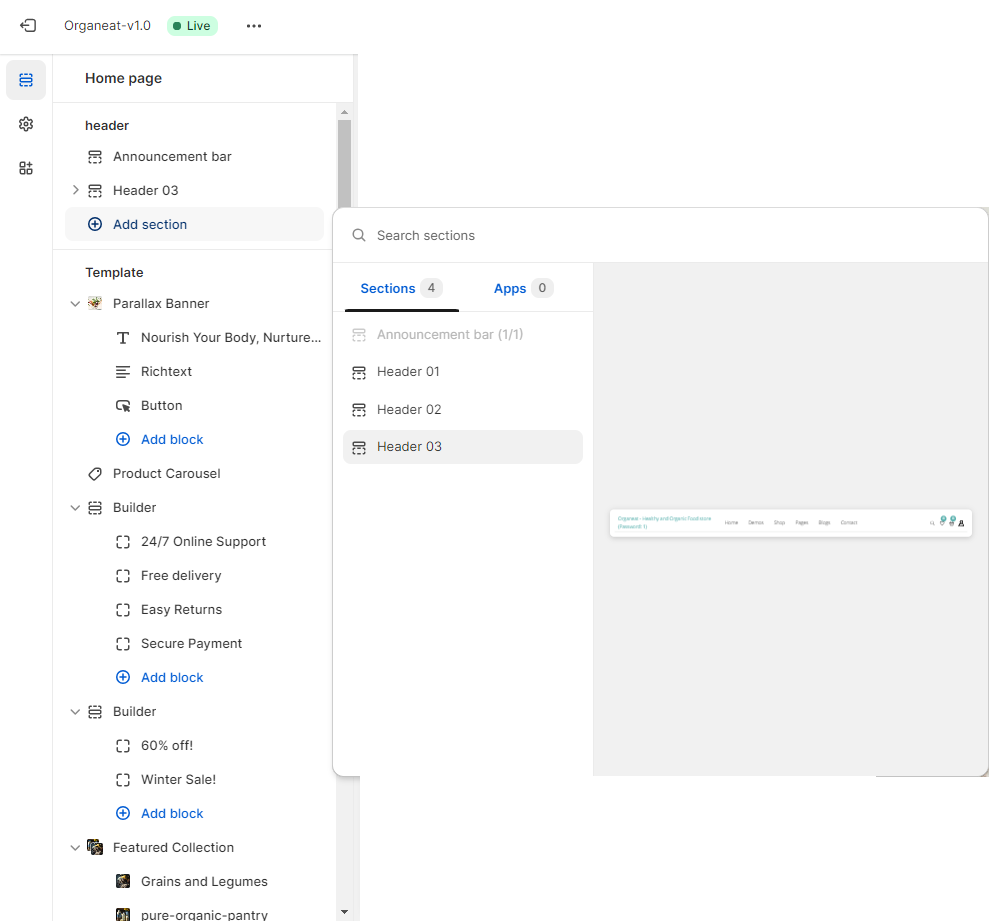
- Click Sections 🠚 Header
- You can add a section with a premade Header layout (Header 01 & Header 02)
- In Header 01 or Header 02 you can add blocks like Megamenu Advance, Megamenu Title & Image, Megamenu Simple & Banner
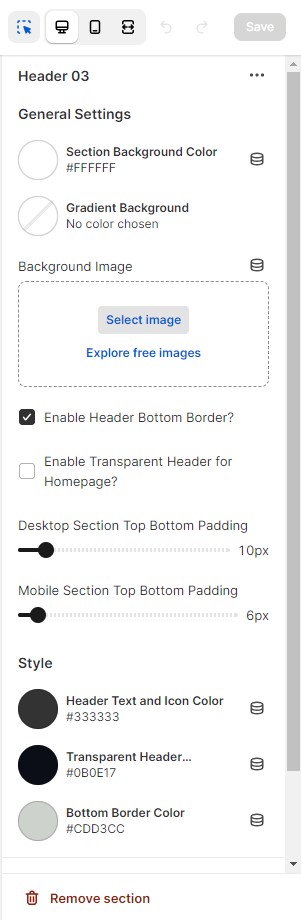
- In the Header customization area, you set to change the Background image, Spacing, Font settings, and Color customization
- you can also customize the Desktop and Mobile menu setting
The first image shows how you add the block in the
Header section:
The second image shows how you customize your Header:
Menu Items
Refer to our full video instructions for setting up the menu items.
To set up the Menu item, please follow the instructions below:
- From your Shopify admin, go to Online Store ➝ Navigation.
- Click the title of your Main menu.
- Choose one of the Menu items to be the Header for your drop-down menu, or add a new Menu item to be the Header
- Click the Add menu item.
- Click and drag the menu items to nest below the header menu item.
- Click the Save menu.
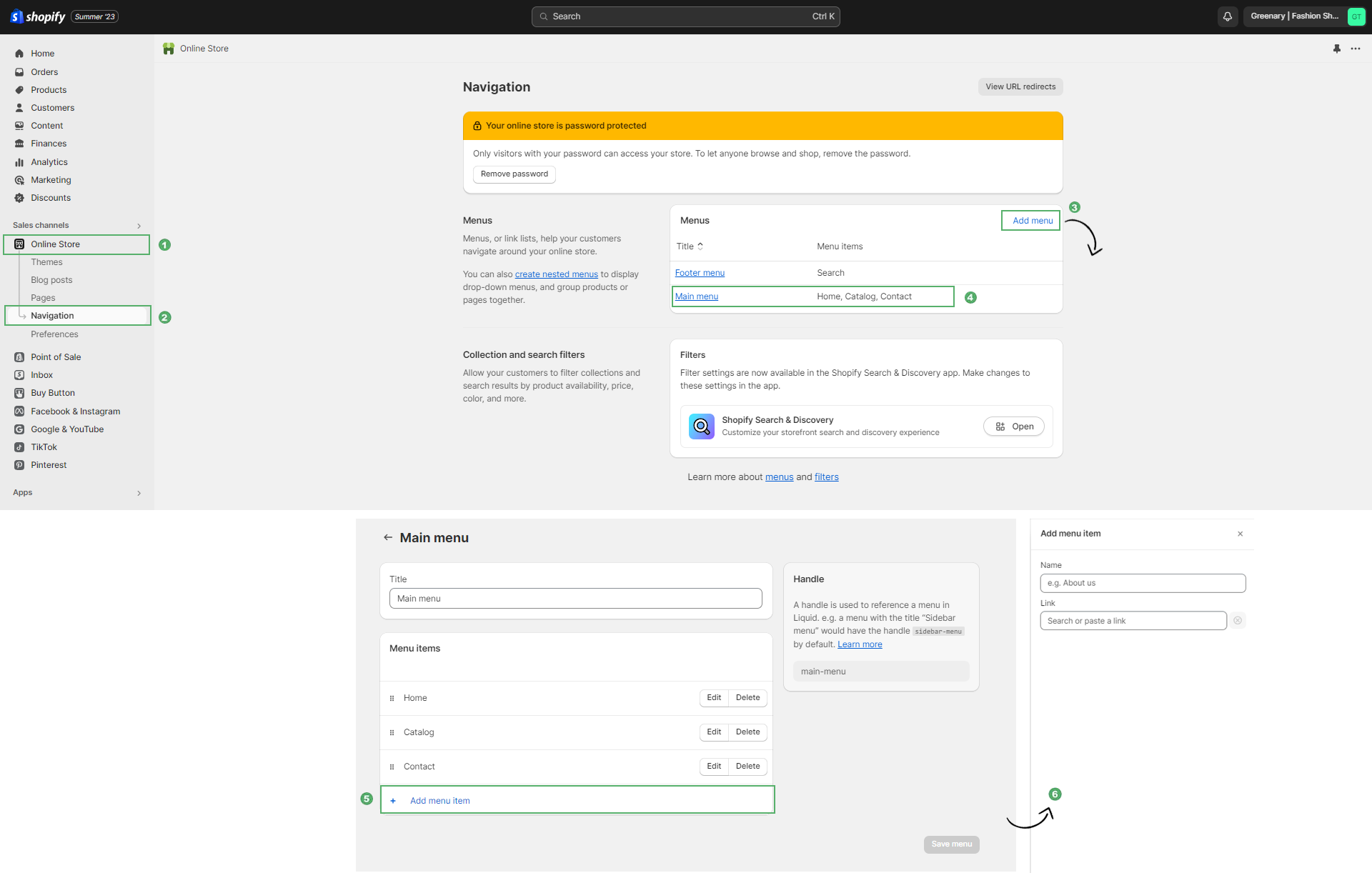
Note: Please fill out the Heading text box of the Menu item . The heading for Menu section for desktop and mobile will be the same.
Dropdown / Advanced Mega Menu
How to create a multi-level dropdown mega menu?
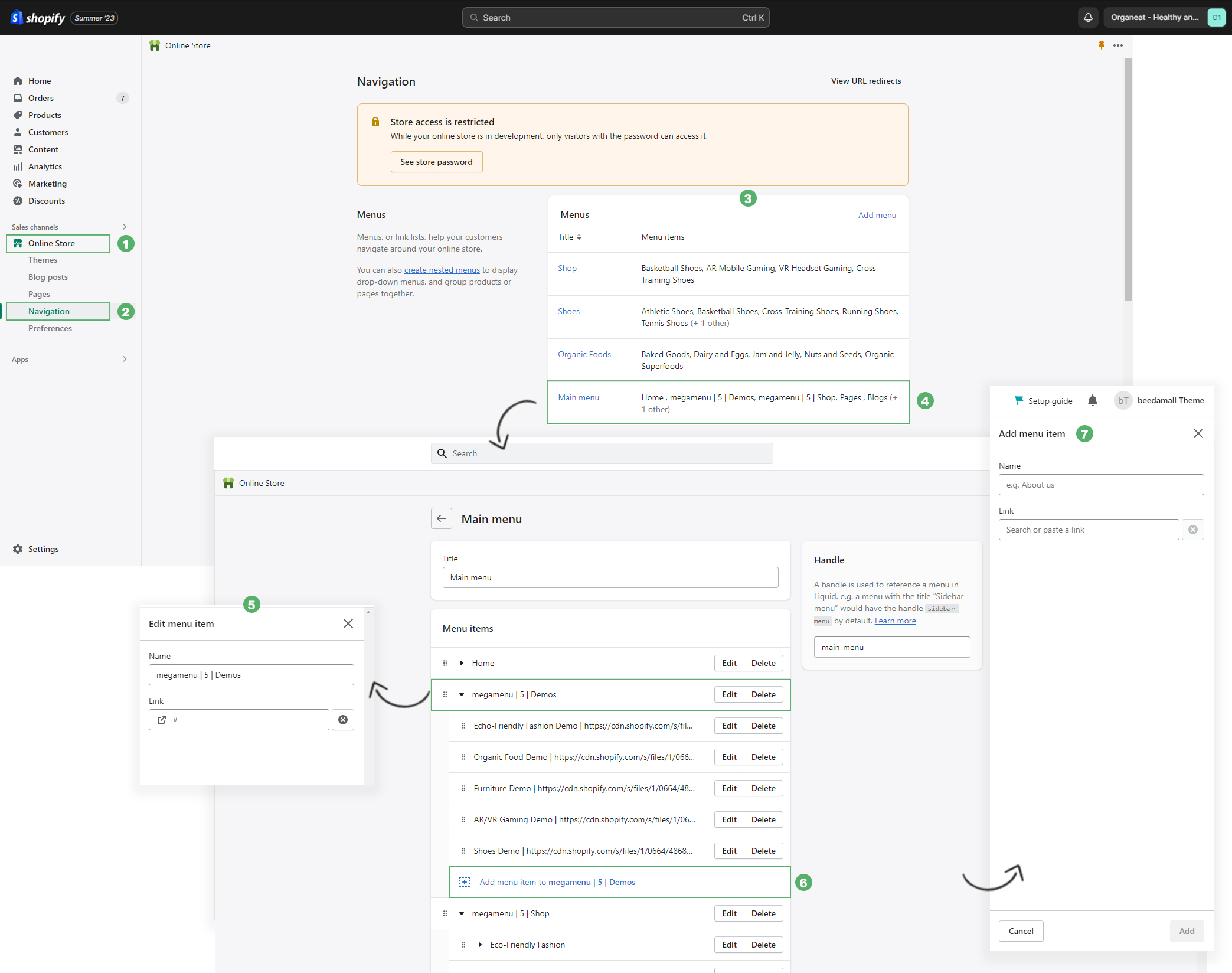
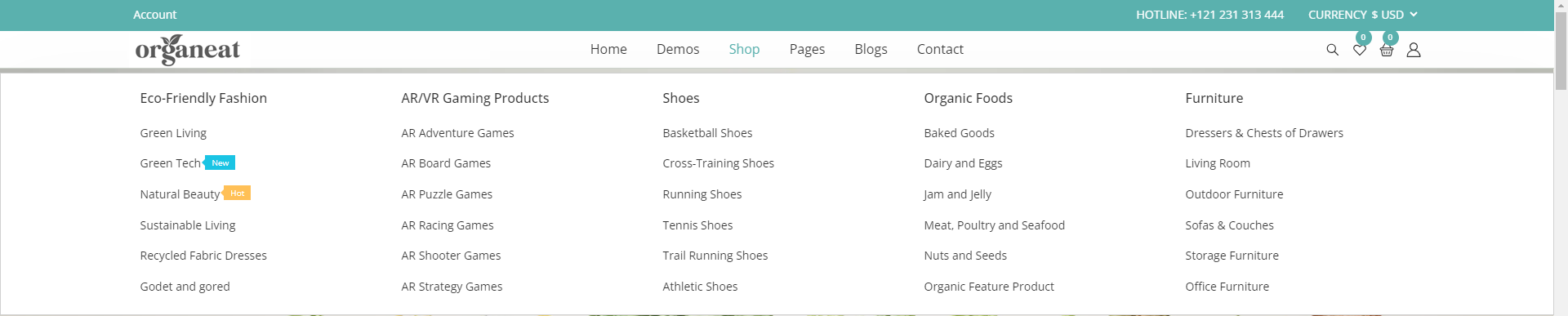
- From your Shopify admin, go to Online Store ➝ Navigation.
- Click the title of your Main menu.
- Choose one of the menu items to be the header for your drop-down menu, or add a new menu item to be the header.
- To add the mega menu, go to Edit ➝ Type megamenu | (vertical bar) ➝ Total Column – like (2/3/4) ➝ again type | (vertical bar) ➝ after that type Header menu name. (ex. megamenu | 4 | Themedemo)
- Click and drag the menu items to nest below the header menu item.
- For new, hot, and sale tags, go to the edit option on the submenu, then type new ➝ | ➝ Sub menu item name. (ex: New | Layout 01 – Default )
- Click the Save menu.
Footer
To set up the Footer, please follow the instructions below:
- From your Shopify admin, go to Online Store ➝ Themes
- Then click on the Customize button
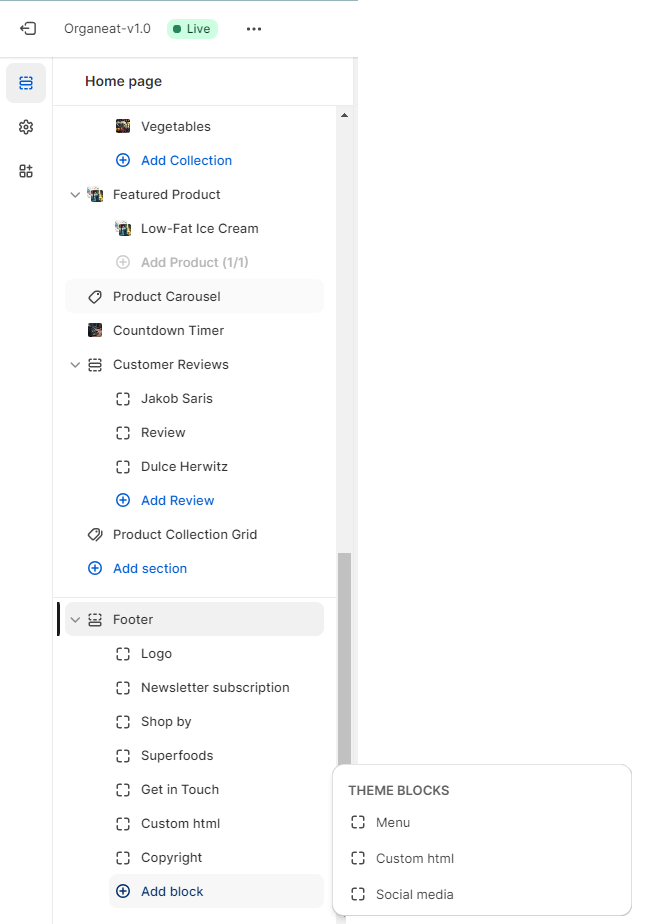
- Click on the Footer section
- Click Add Block what you want to add
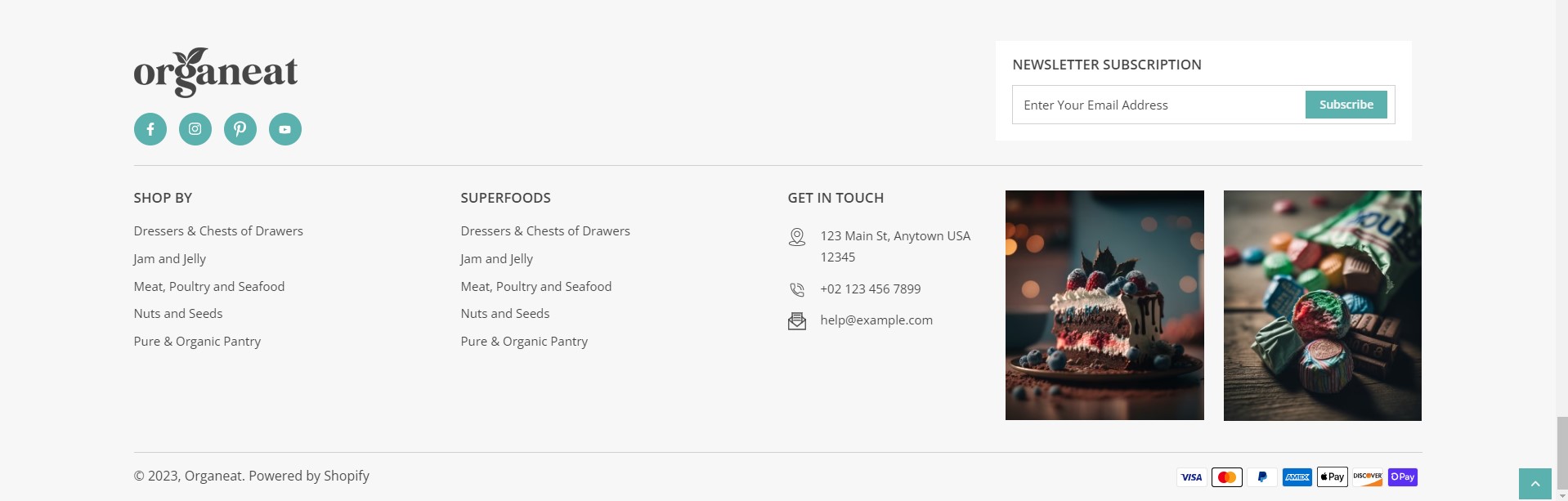
- You can choose between two types of premade Footers: Footer One and Footer Two
- In the footer section block you can add Menu, Custom HTML, Social media, and Logo
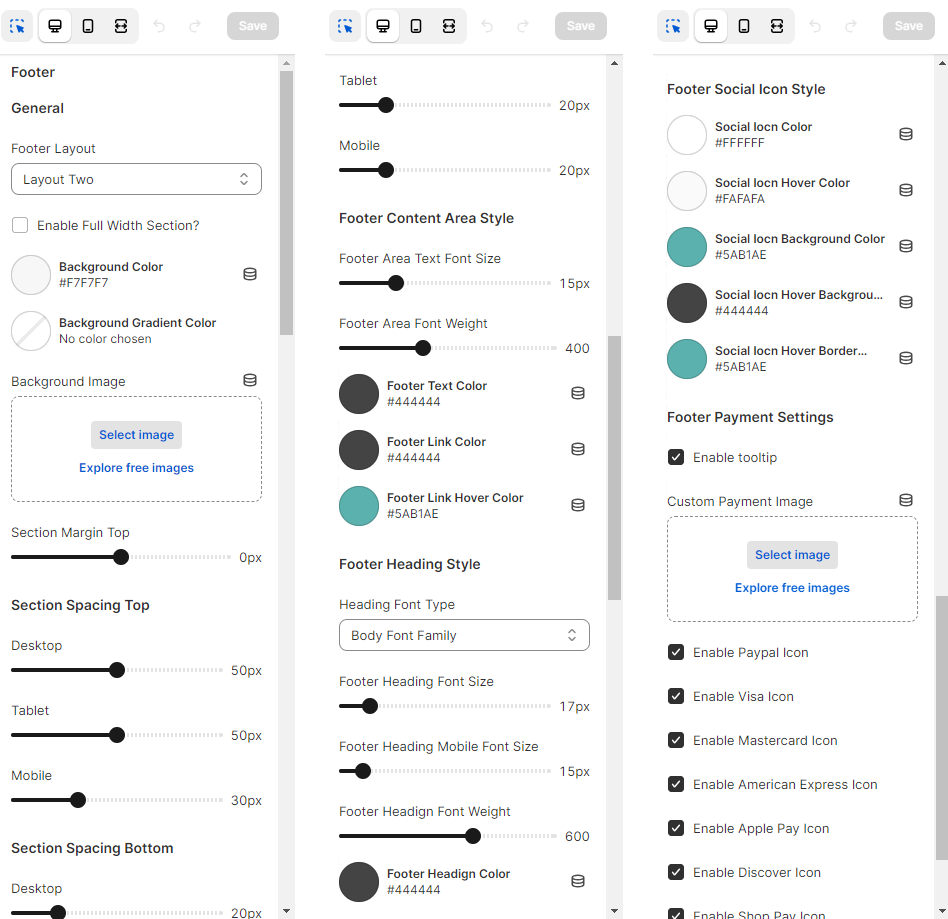
- You can customize the Footer background style, Footer spacing, Footer content area style, Footer heading style, and Footer social icon style
- Footer social icon style is also customizable by Icon style color and background
- You can enable or disable the Payment icon in the bottom of the Footer
The image below shows the Footer customization area:
Our few premade Footer design:
Product Setting
Choose Product Page Layout in Theme Editor:
Follow these steps to choose the Product page layout in Theme editor:
- From your Shopify admin, go to Online Store ➝ Themes
- Then click on the Customize. button
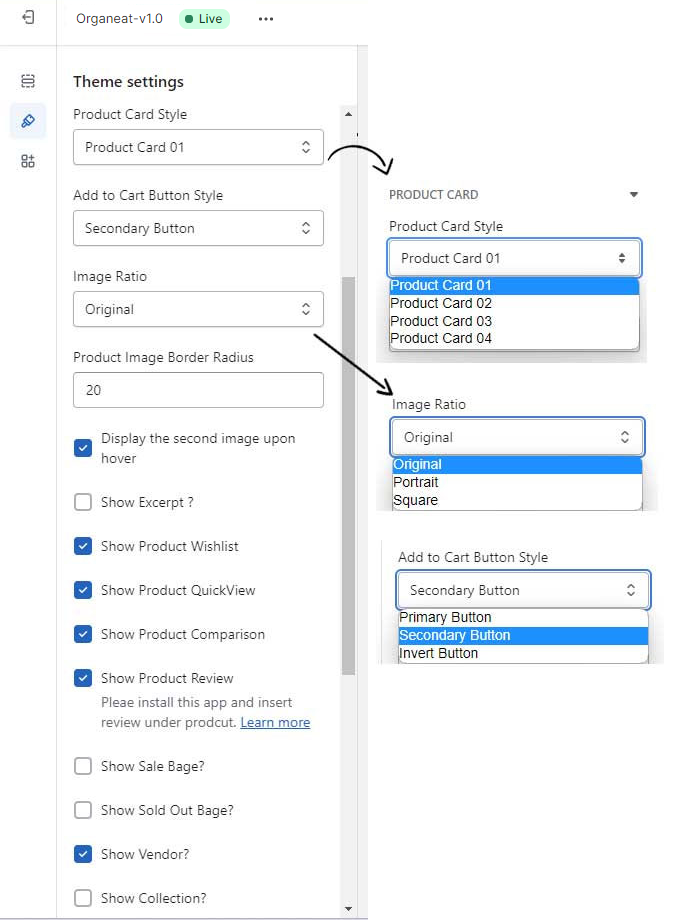
- Click the Theme settings ➝ Product card
- In the Product Card setting you can change the Button style by (Primary, Secondary and Invert) and the image ratio
- You can select or deselect the Secondary image on Hover, wishlist, Quick view, Product review, Sale badge, Sold out badge, Vendor and Collection
- Click Save
To get full instructions, please follow the image below:
How to Add Product?
To add a product, please follow the steps below:
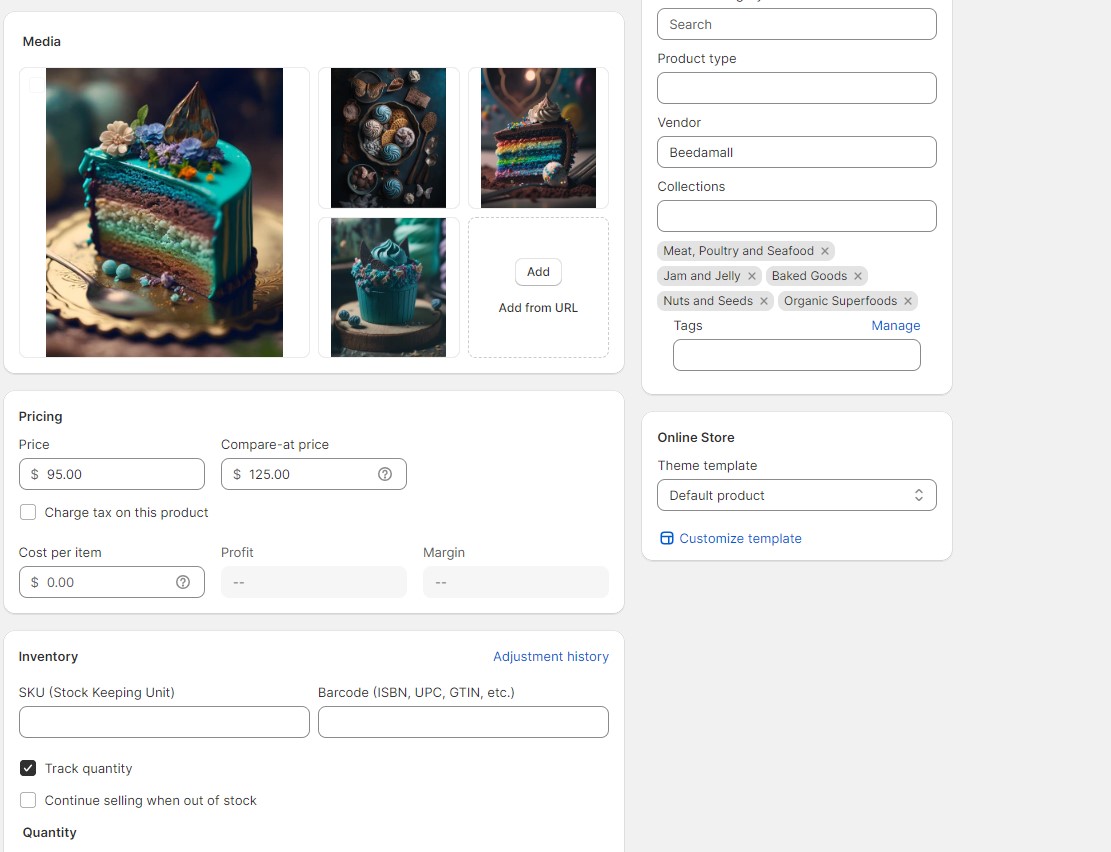
- From your Shopify admin, go to Products.
- You can add products by importing the. CSV file.
- Or you can add products manually by clicking the Add Product button.
For more specifications please visit the link below.
Product Page Design
Follow these steps to customize the product page templates:
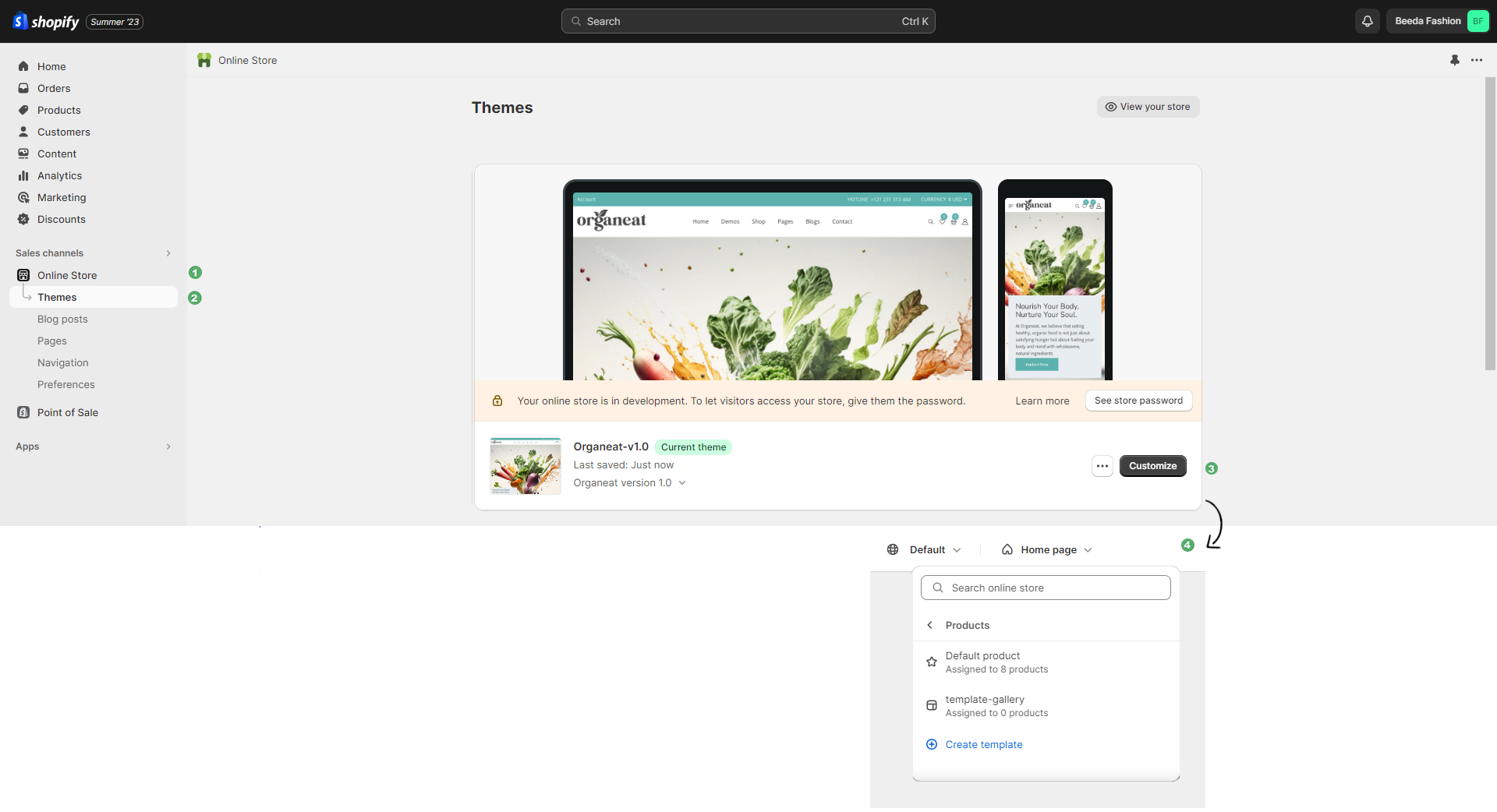
- Please log in to your Shopify store, and click Online Store.
- Click on the Customize button
- From the top header, select the products from the dropdown.
- In the product section select the Default product option
- You can customize the product page by adding Section and Block
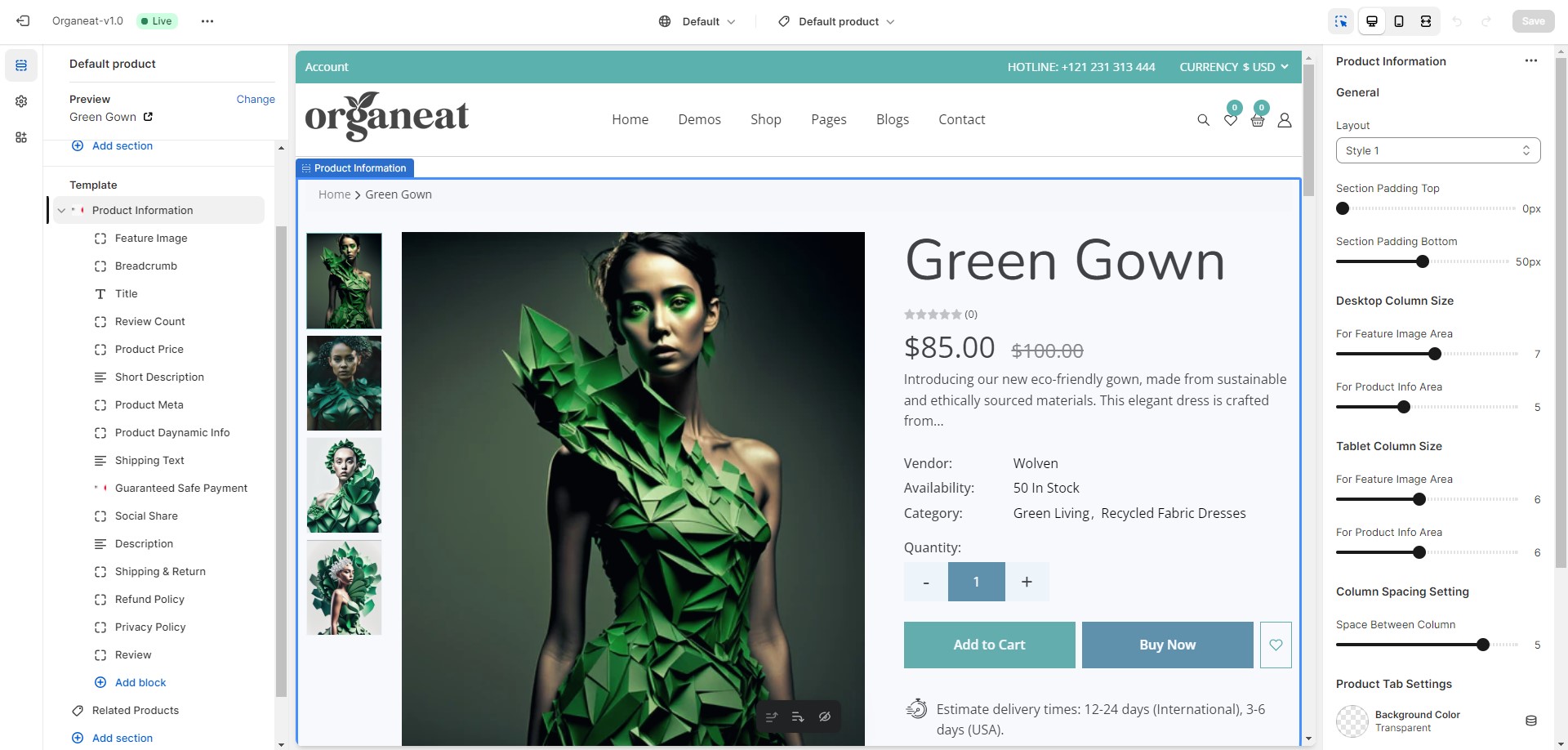
You can drag and drop all blocks in Product information to arrange the position you want.
Product Media
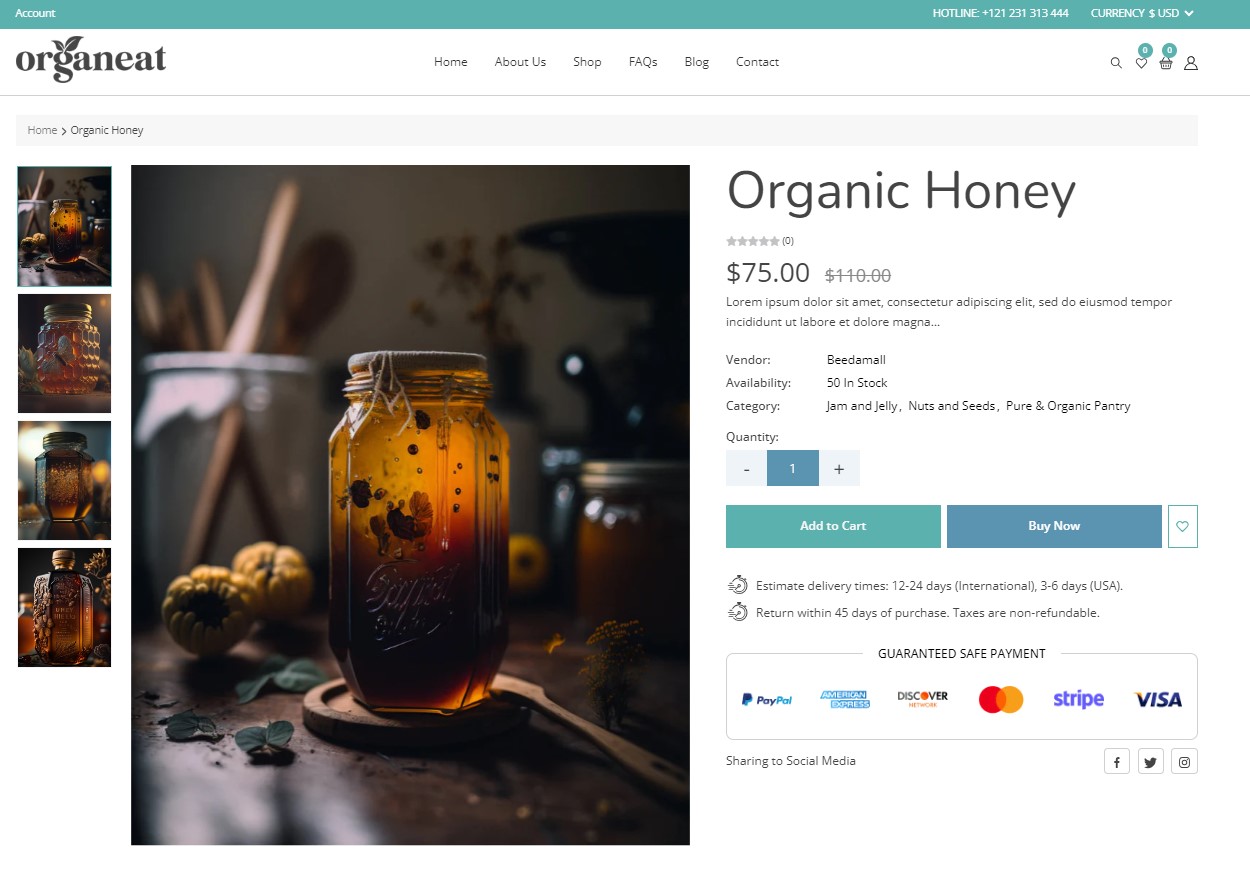
Product media can include images and videos. For more information, see Product media. You will be able to upload and order it from the Product admin.
Product Description
Follow these steps to add a Product description:
- From your Shopify admin, go to Online Store -> Themes.
- Then click on the Customize button.
- Choose Products from the dropdown window.
- In the Product Information section, add Description tab block.
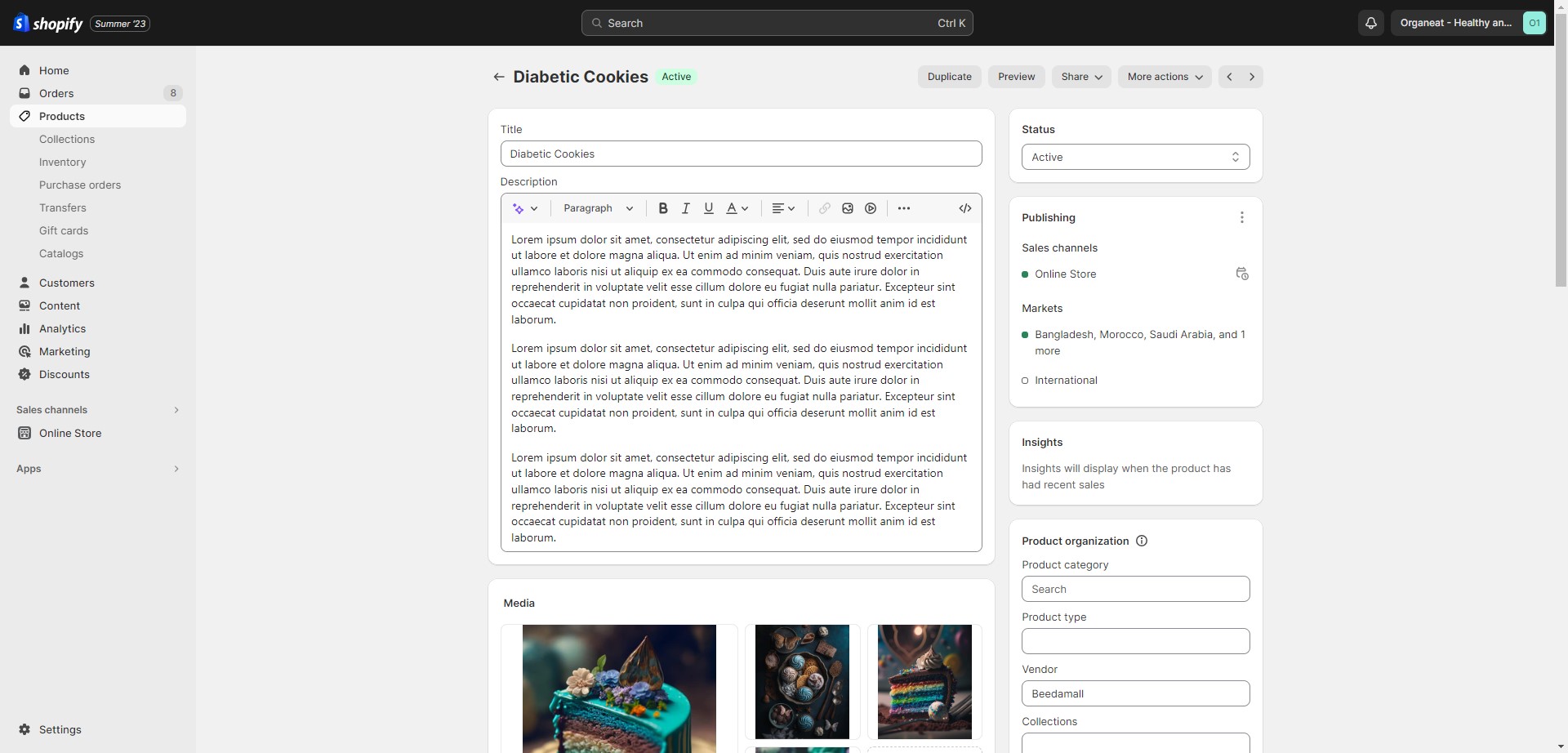
Information: In the Product description section, you can add multiple Text, Images, and Videos.
Related Products
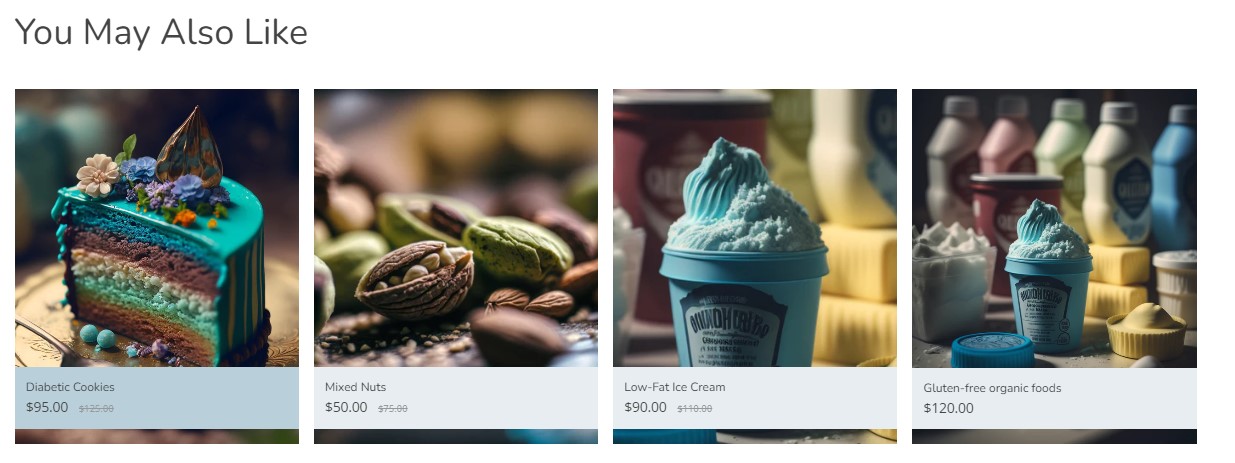
Follow these steps to add a Related Products:
- From your Shopify admin, go to Online Store ➝ Themes.
- Then click on the Customize button
- Choose Products from the dropdown window
- Select Default product from the dropdown
- In the Default product setting, you will find the option of Related product
- In the Related Product, you can customize the Layout type by carousel or grid and adjust the Column per row and Control spacing
- Click Save
Refer to our full Video Instructions for setting up the Related Product.
How to create a Page ?
Web pages are a way to provide general information about your business or products.
- go to Online Store > Pages.
- Click Add page
- Enter Title and Content for the page. Be descriptive and clear when choosing your webpage title. The webpage Title will be displayed in the tab or title bar of browsers
- Under Visibility, select when the page should be published. By default, your new webpage will be visible when you click Save. Select the Hidden option if you want your new webpage to be hidden from your online store, or click Set a specific publish date to control when your web page is published
- Click Save.
- Optional: To make a published web page appear in your Online store navigation, add a Link to it in a menu
Please publish the theme as a live site to be able to create the page. For more information, see Pages.
Refer to our full Video Instructions for setting up the Create a Page.
Login Page
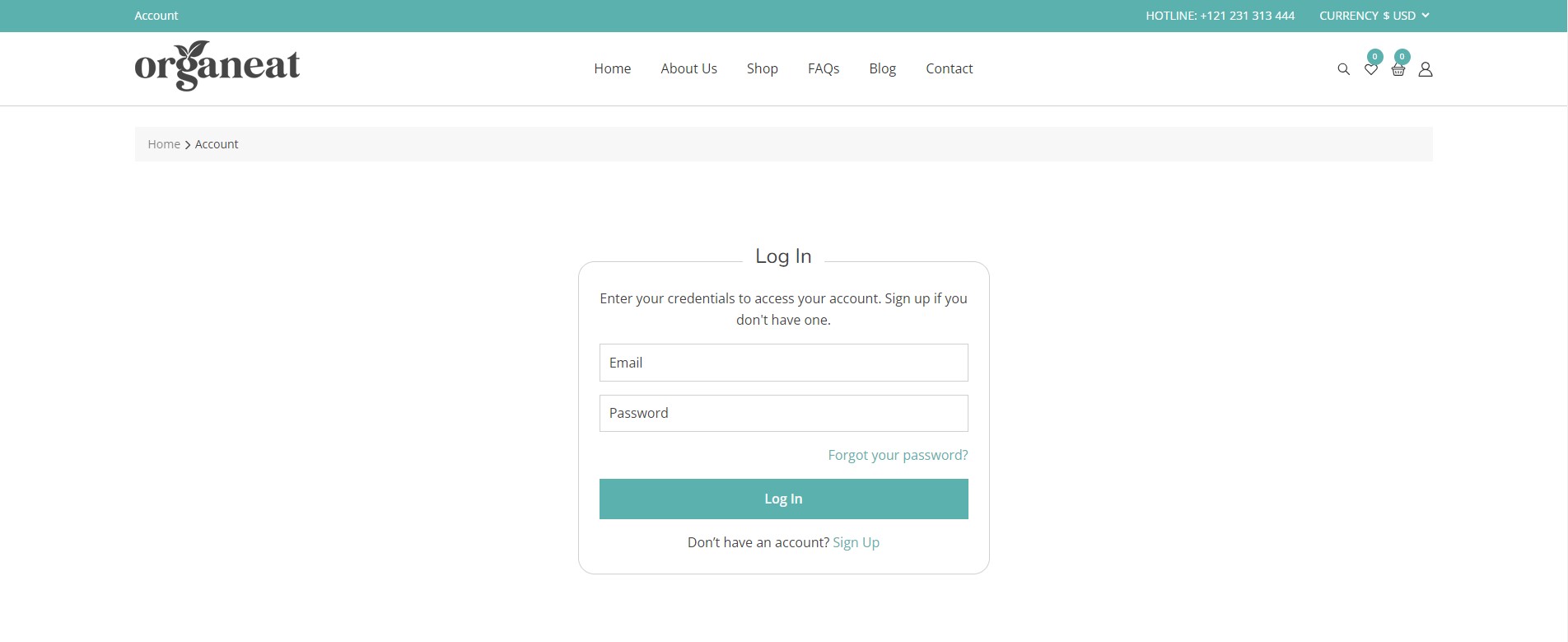
The Login page shows where customers can access their account.
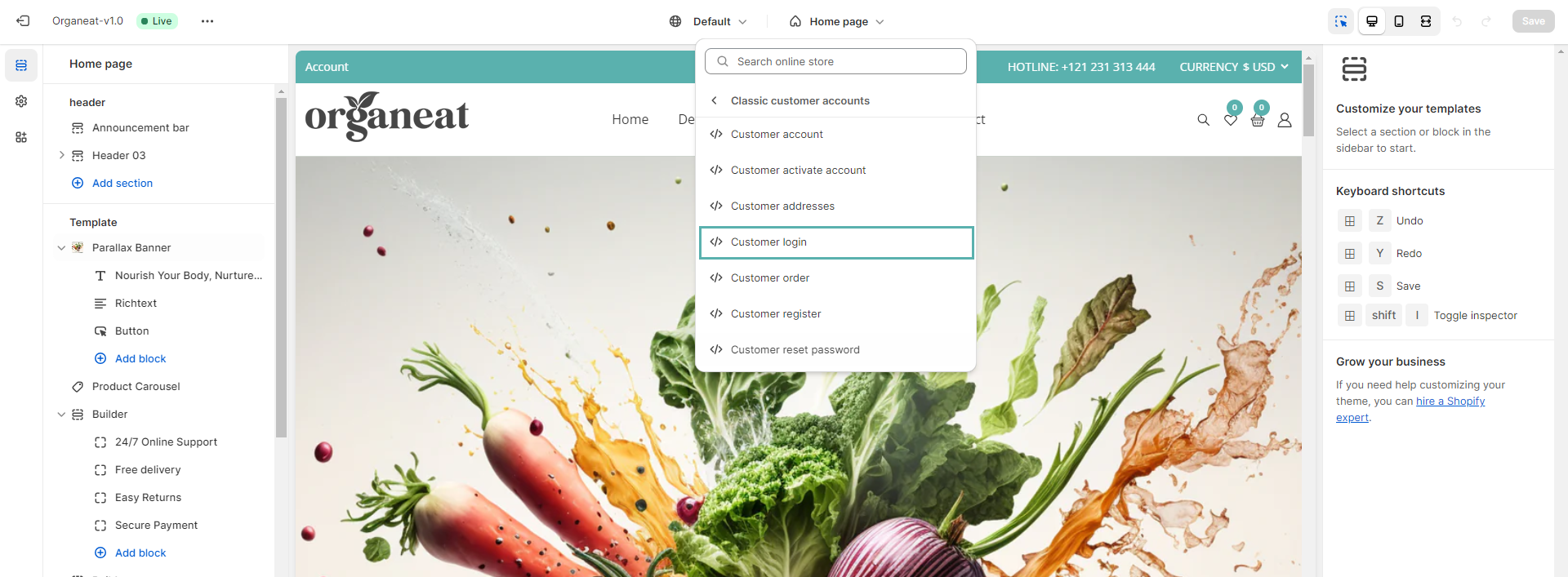
- From your Shopify admin, go to Online Store ➝ Customize.
- Then click on the Customize button.
- Choose Classic customers accounts from the dropdown window.
- Select Customer login.
- Edit Customer login page
- click Save
Please follow the below image to setup the Login page:
Wishlist Page
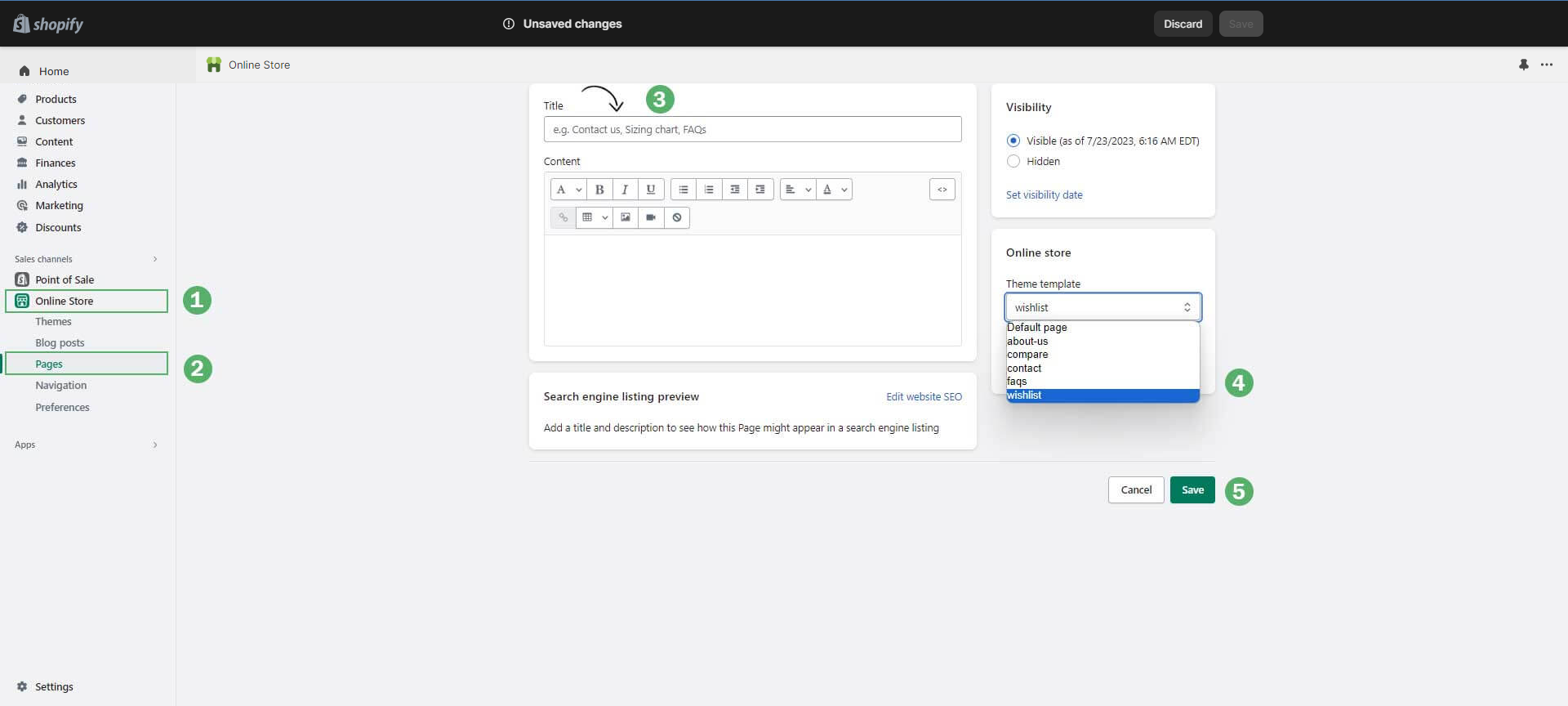
To set up the Wishlist page, please follow the below instructions:
- From your Shopify admin go to Online Store ➝ Pages.
- Click Add Page
- Write a Title for the wishlist page
- From the right sidebar select wishlist from the Theme template
- Click Save
FAQ Page
OrganeatTheme offers a FAQs page, also known as the frequently asked questions section. It is a web page in your online store where you address common concerns, questions, and objections customers have.
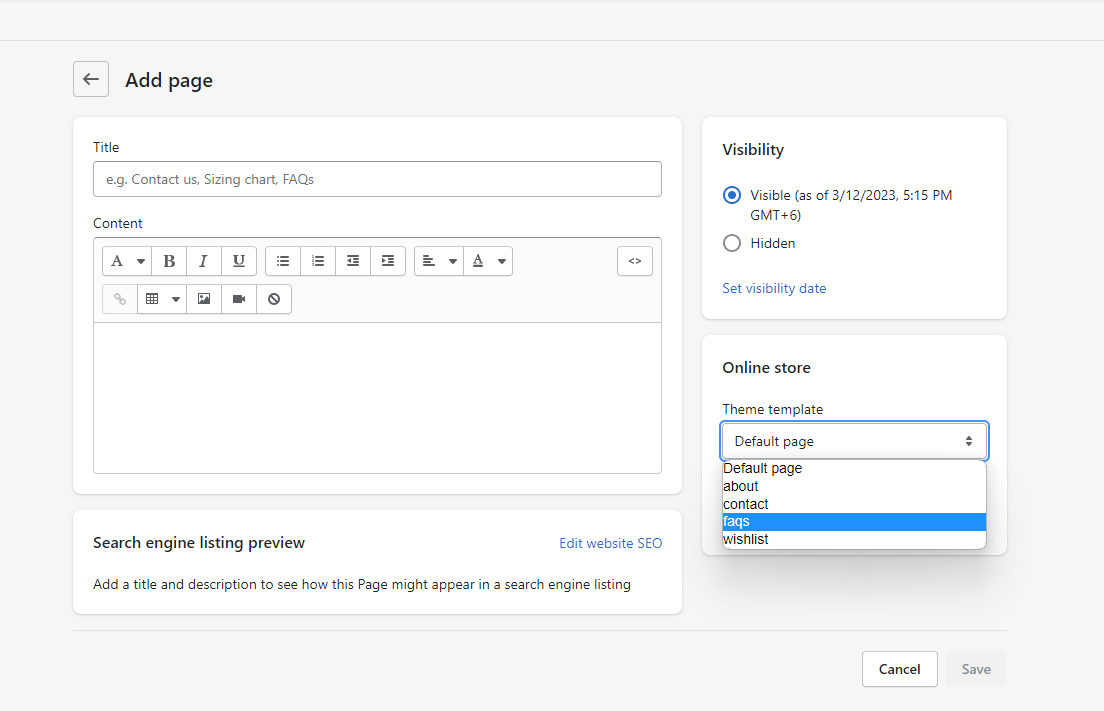
You can set up the FAQs page through the following steps:
- go to Online Store ➝ Pages.
- Click Add page
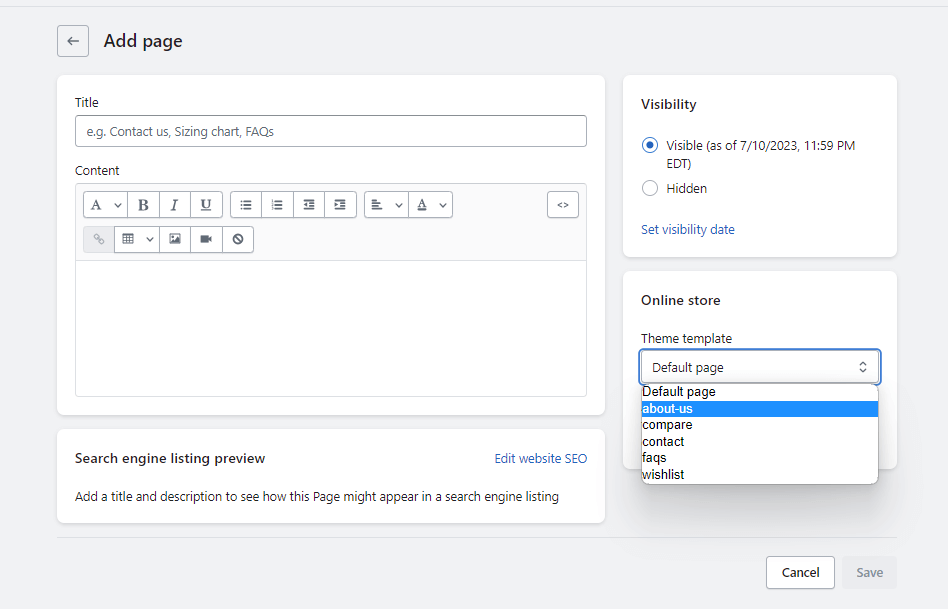
- Enter a title (ex: FAQs). After that, choose the Theme template looks like the below image
- Click Save.
Contact Us Page
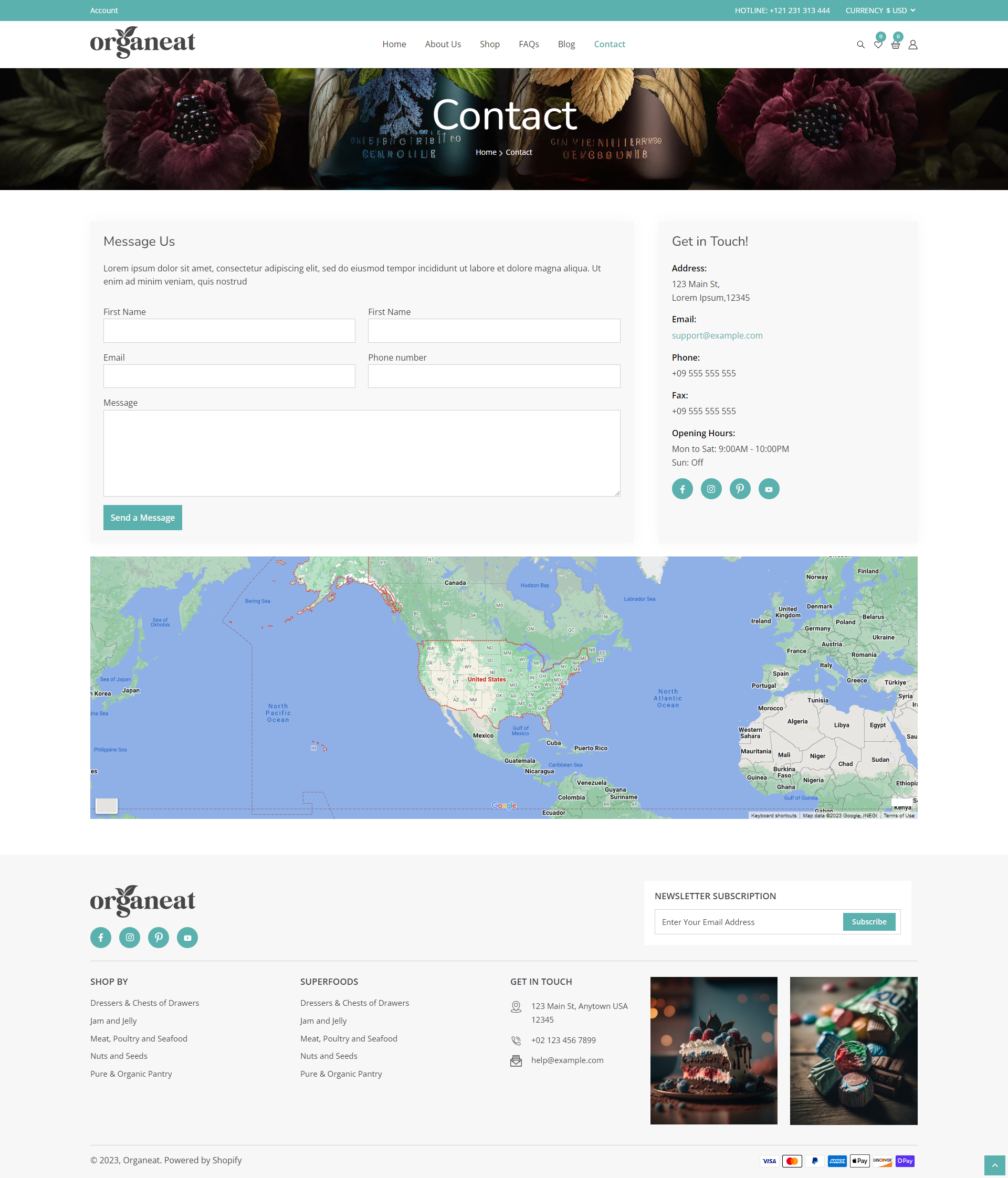
The Contact us page answers the questions of customers individually as well as provides them with information on how they can get in touch with you. When customers submit the form, the information will be sent to the email you set up in Settings. You will be able to check your email and reply to them manually.
Follow these steps to set up the Contact page:
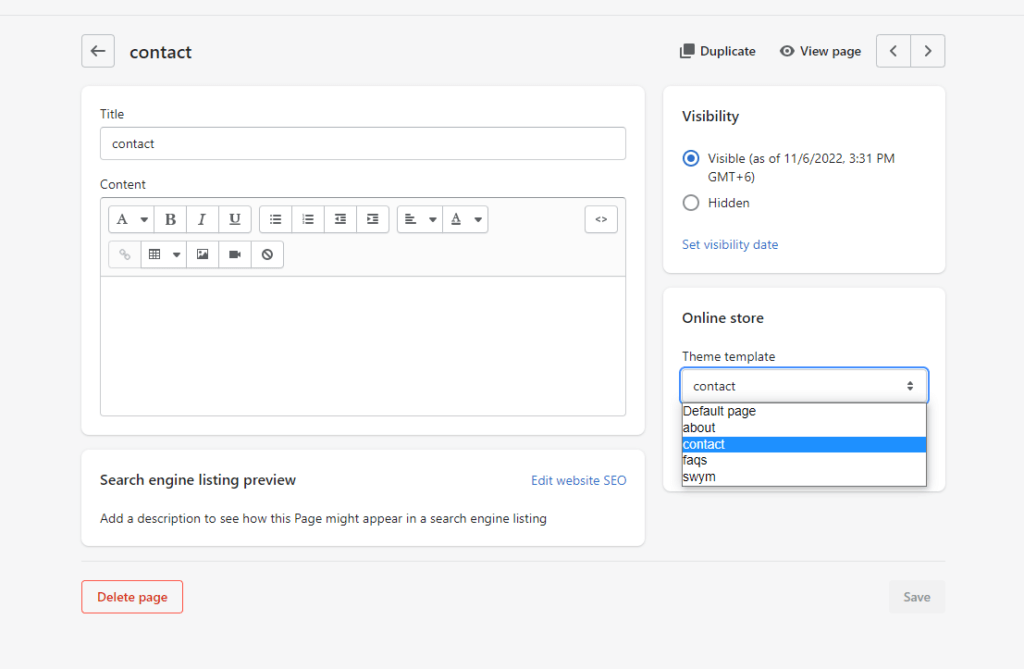
- Go to Online Store > Pages.
- Click Add page
- Enter a Title (ex: Contact Us). After that, choose the Theme template to look like the below image
- Click Save.
There are various Contact us templates that you can experiment with.
How To Set Up Sections For Contact Us Page?
Follow these steps to set up sections for the Contact us page:
- From your Shopify admin, go to Online Store > Themes.
- Then click on the Customize button.
- Choose Pages from the dropdown window and choose a template for the Contact us page
Others Page
404 Page
404 page tells the visitors that the requested page is unavailable or it does not exist for certain reasons.
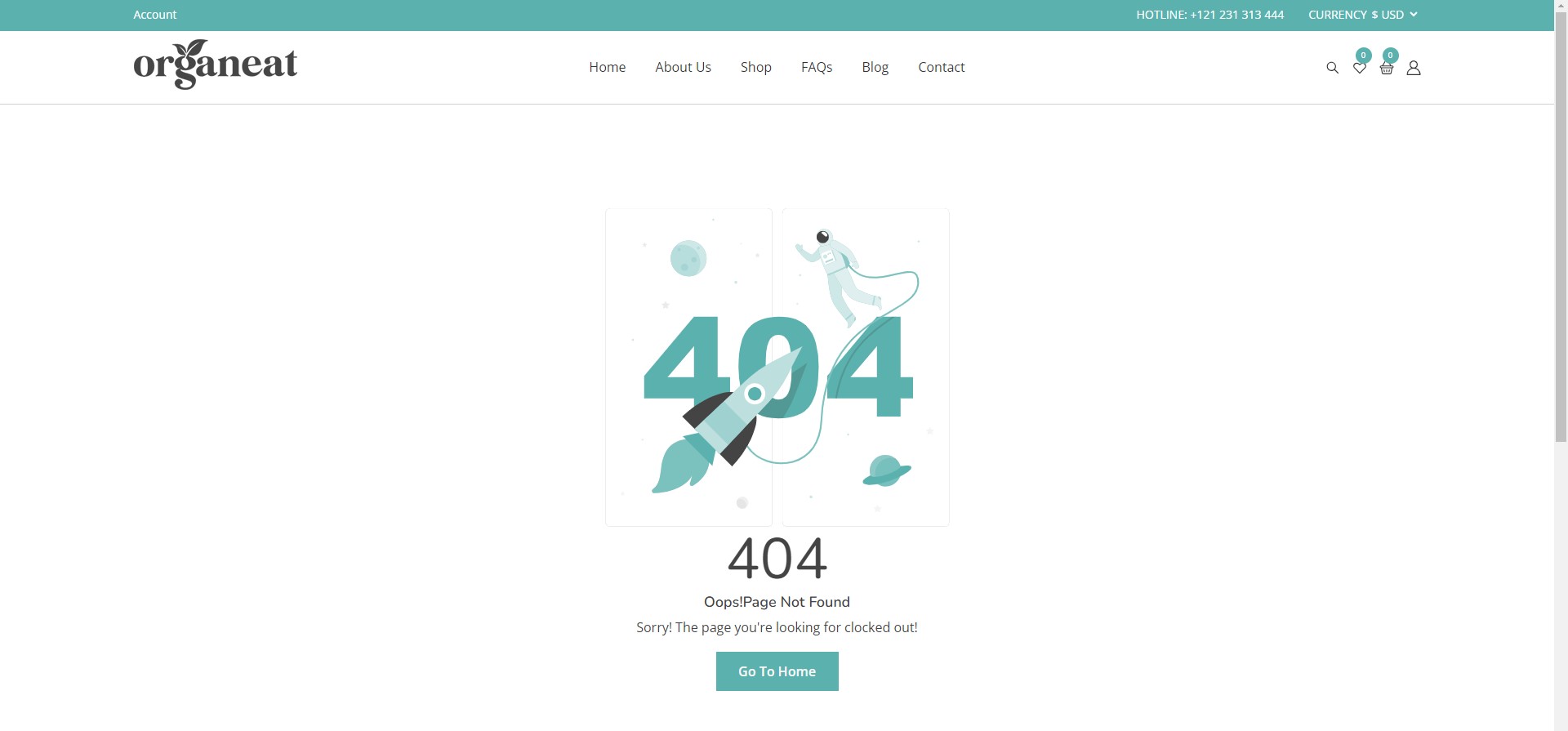
How to set up 404 Pages?
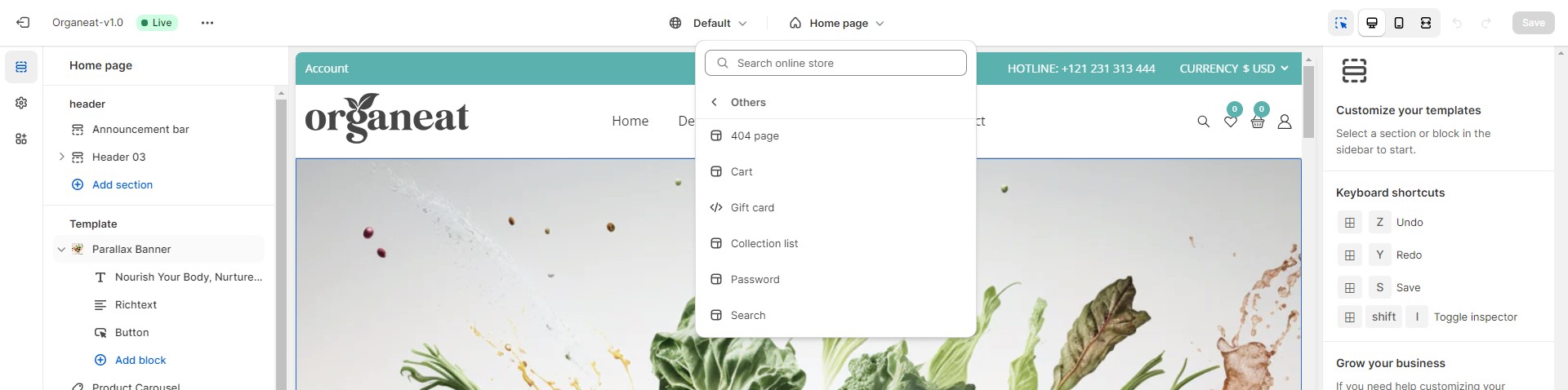
Follow these steps to set up the 404 page:
- From your Shopify admin, go to Online Store ➝ Themes.
- Then click on the Customize button.
- Choose others from the dropdown window ➝ Choose 404 Page
Advance Predictive Search
A Search page is a page where customers can search for specific products or pages. It helps them find the products, brands, features, and content that they care about.
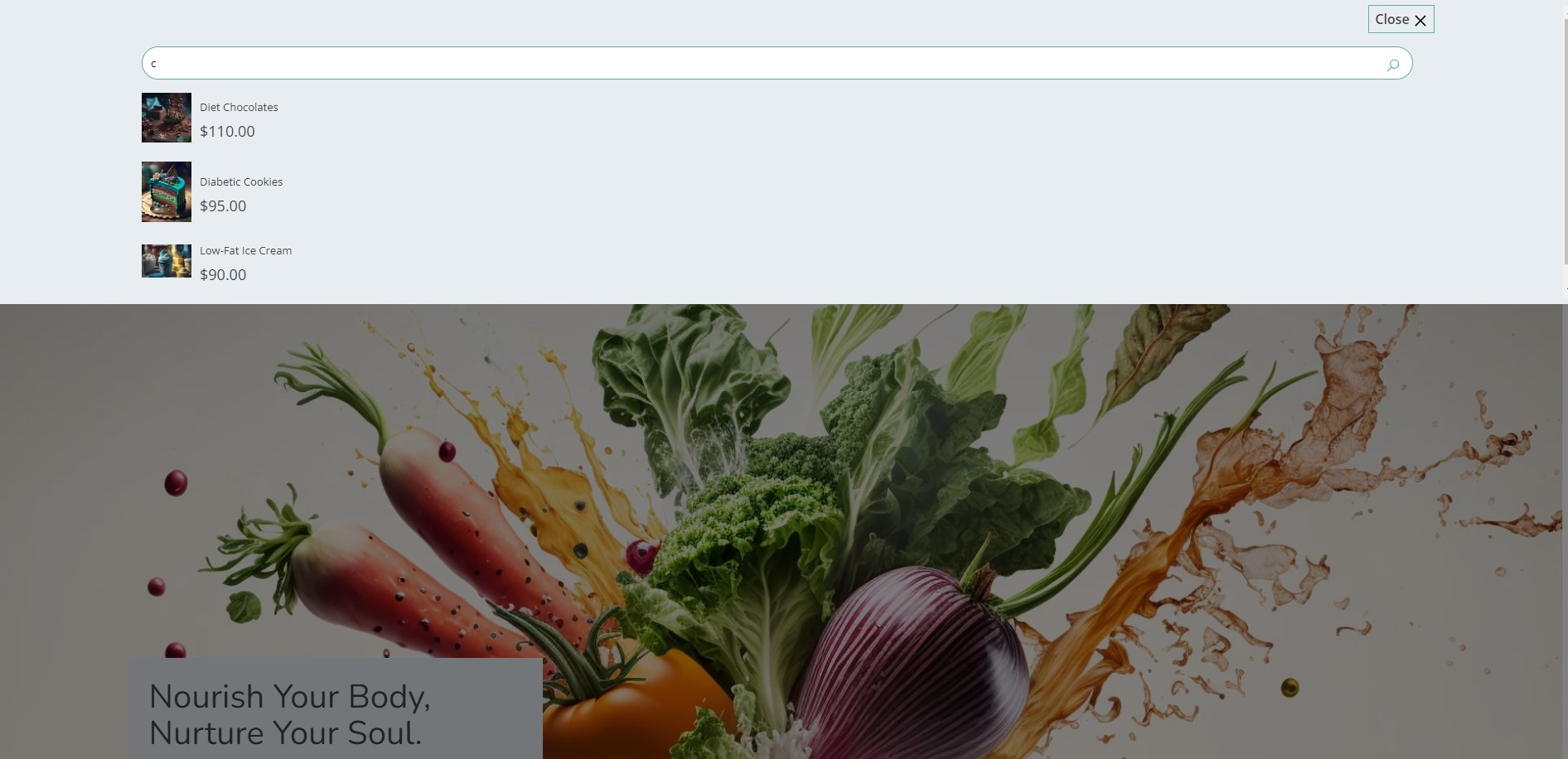
How to set up sections for the Search Page?
Follow these steps to set up the Search page:
- From your Shopify admin, go to Online Store ➝ Themes.
- Then click on the Customize button.
- Choose Others from the dropdown window choose Search.
About Us Page
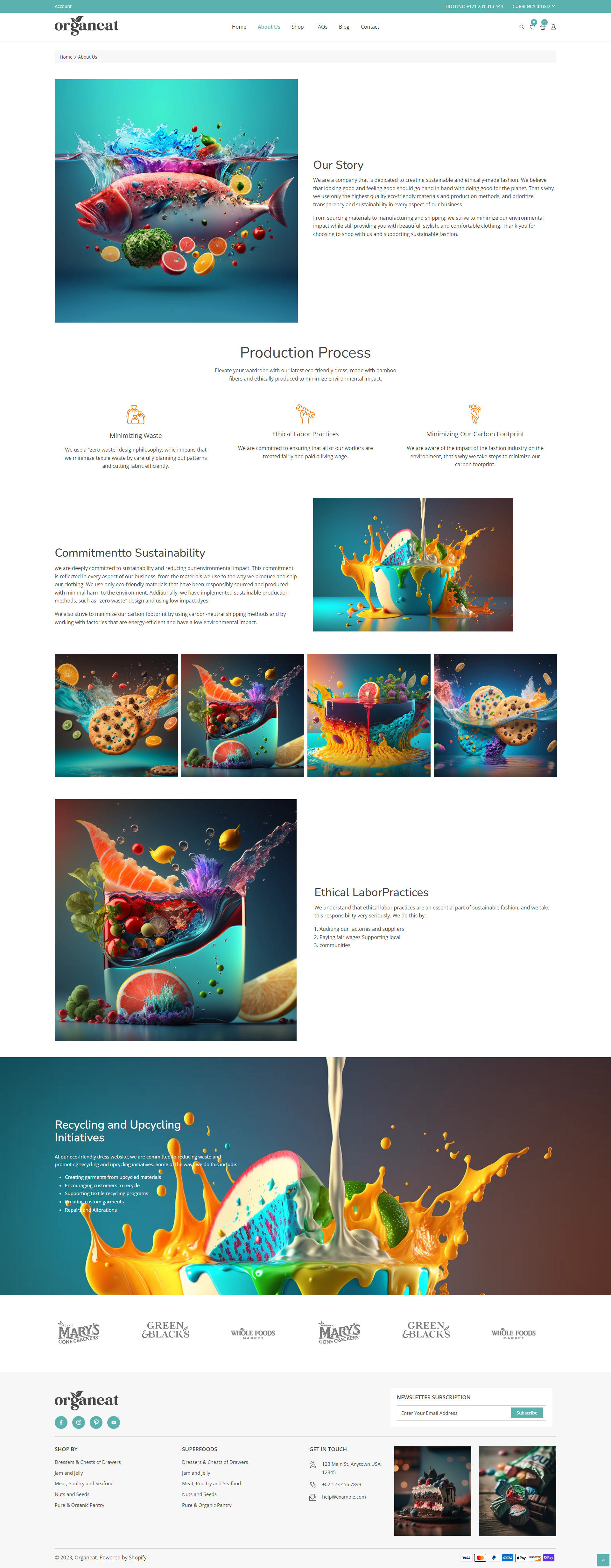
Organeat Theme offers the About us page as an essential part of a Shopify store as it helps establish trust, convey your brand’s story, and engage with customers on a personal level.
- Go to Online Store ➝ Pages.
- Click Add page
- Enter a title (ex: About). After that, choose the Theme template look like the below image
- Click Save.
Section on Every Page
Online Store 2.0 introduces a new JSON template format that lets you add new and existing sections to most pages in your theme, and add and remove sections from any page directly in the Shopify theme editor. This feature lets merchants personalize many more aspects of a store without relying on a developer. It also lets developers build maintainable themes with more modular components. For more information, see Shopify 2.0.
Some core pages such as: Password page, Checkout page, Account page, Order page will not support sections on these pages due to the structure of Shopify.
Parallax Banner
To add this section, please follow the below steps:
- From your Shopify admin, go to Online Store ➝Themes
- Then click on the Customize button
- Click Add section and choose Parallax Banner
- You can add block like Title, Richtext, & Button
- In the Banner setting, you can customize the Layout and Slideshow animation
- You can customize the Slideshow display on multiple devices
- Moreover you can enable or disable the Slider transition, Arrow indicator, Dots indicator, and Slider loop
- Finally it can be customized through Spacing and Slider animation speed
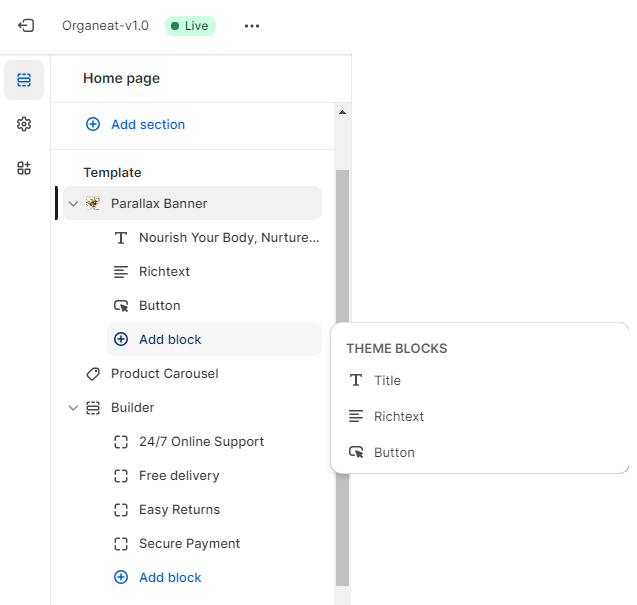
Follow these steps for Slider item customization:
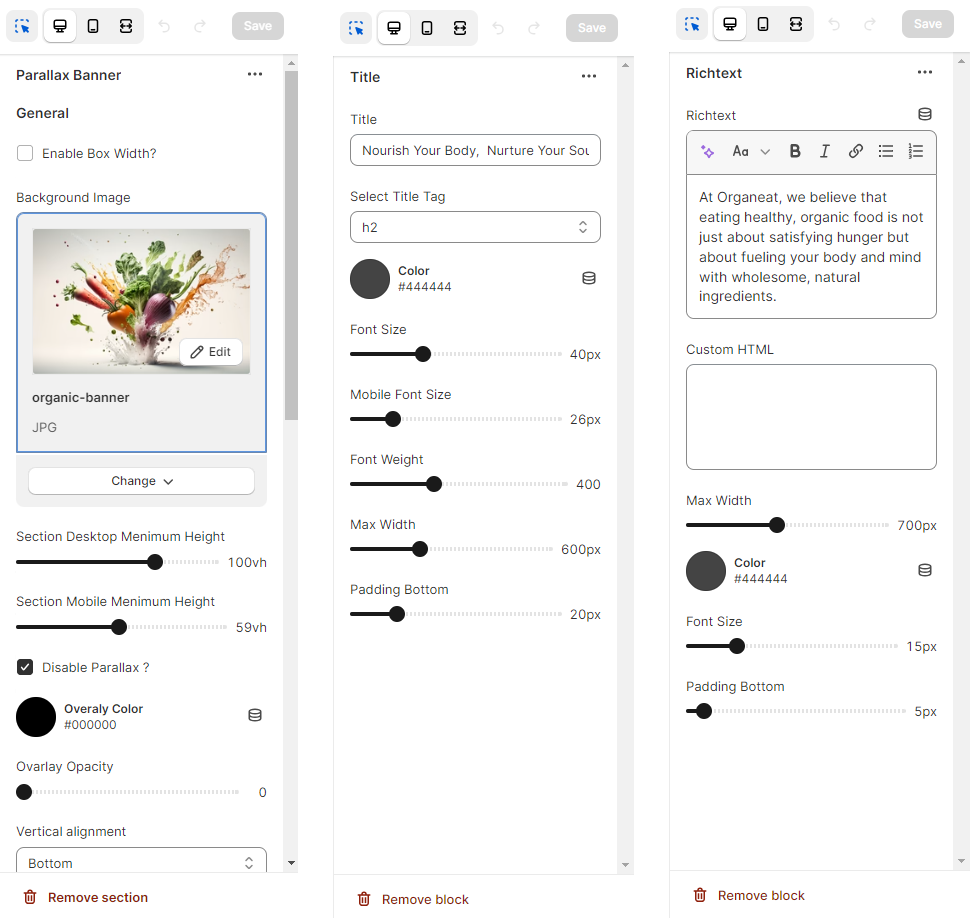
- In the Slider item, you can add Images for desktop and mobile, adjust Overly opacity, and add Slider content position
- You can customize the Position for all devices
- Title, Description & Button settings such as Title tags, Font size, Font weight, Color and Spacing are all customizable
- You can also control the Title, Text and Button animation type and duration
This image shows the Slider item setting
Product Collection Grid
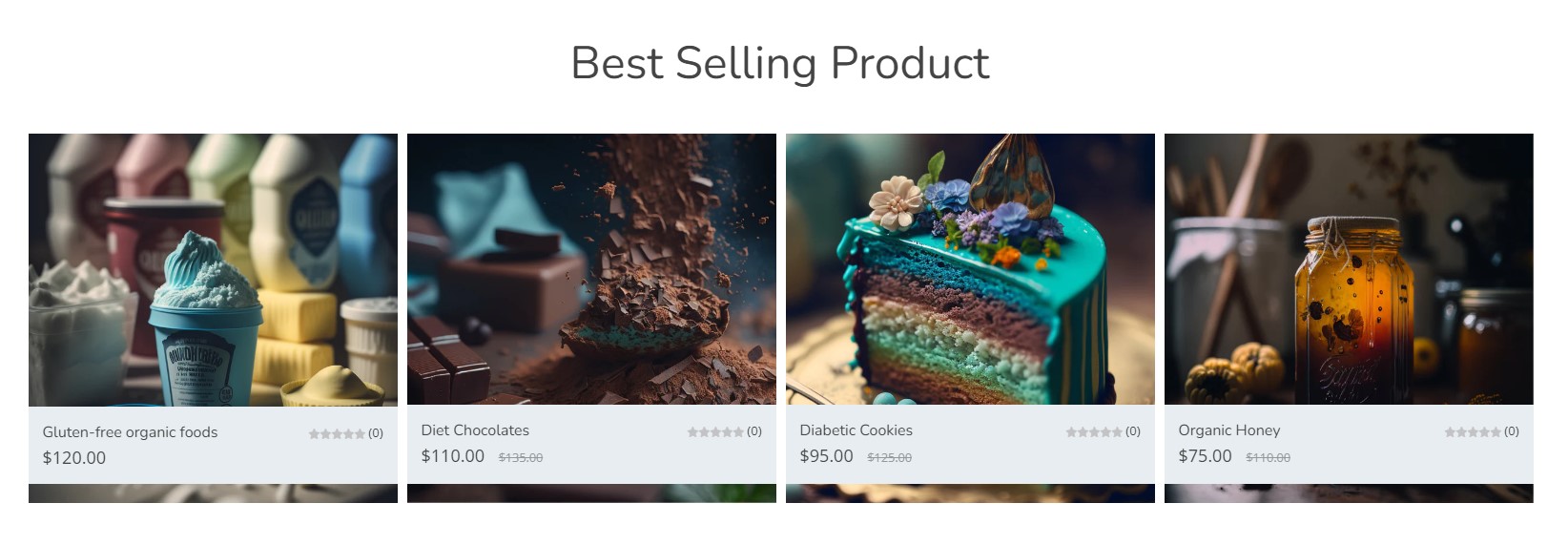
To add this section, please follow the below steps:
- From your Shopify admin, go to Online Store ➝ Themes
- Then click on the Customize button
- Click Add section and choose Product Collection Grid
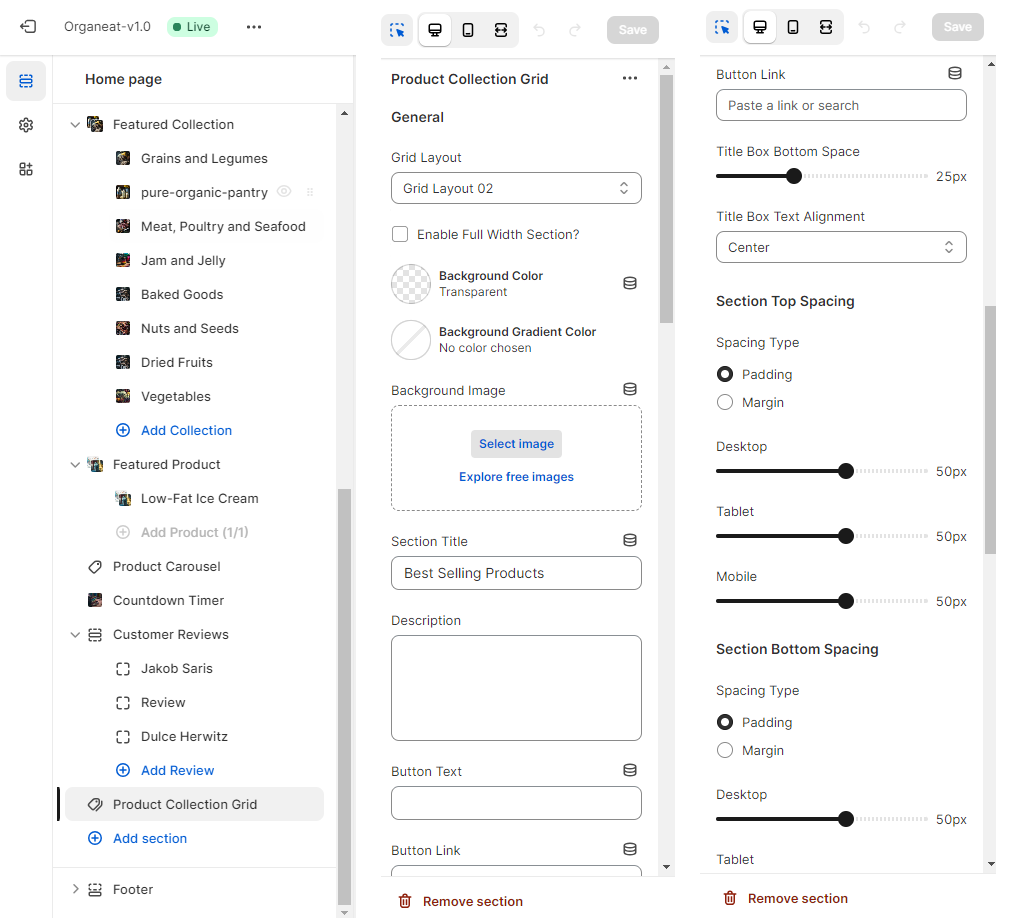
- In the Product collection grid you can change the two premade grid layout style
- You can set the Background Image, Section Title, Description, Button Text, Button Link
- You can also control the Title box Space & Slignment
- Section Spacing and Collection Grid settings are also manageable
This image shows the Product Collection Grid setting
Product Carousel
To add this section, please follow the below steps:
- From your Shopify admin, go to Online Store ➝ Themes
- Then click on the Customize button
- Click Add section and choose Product Carousel
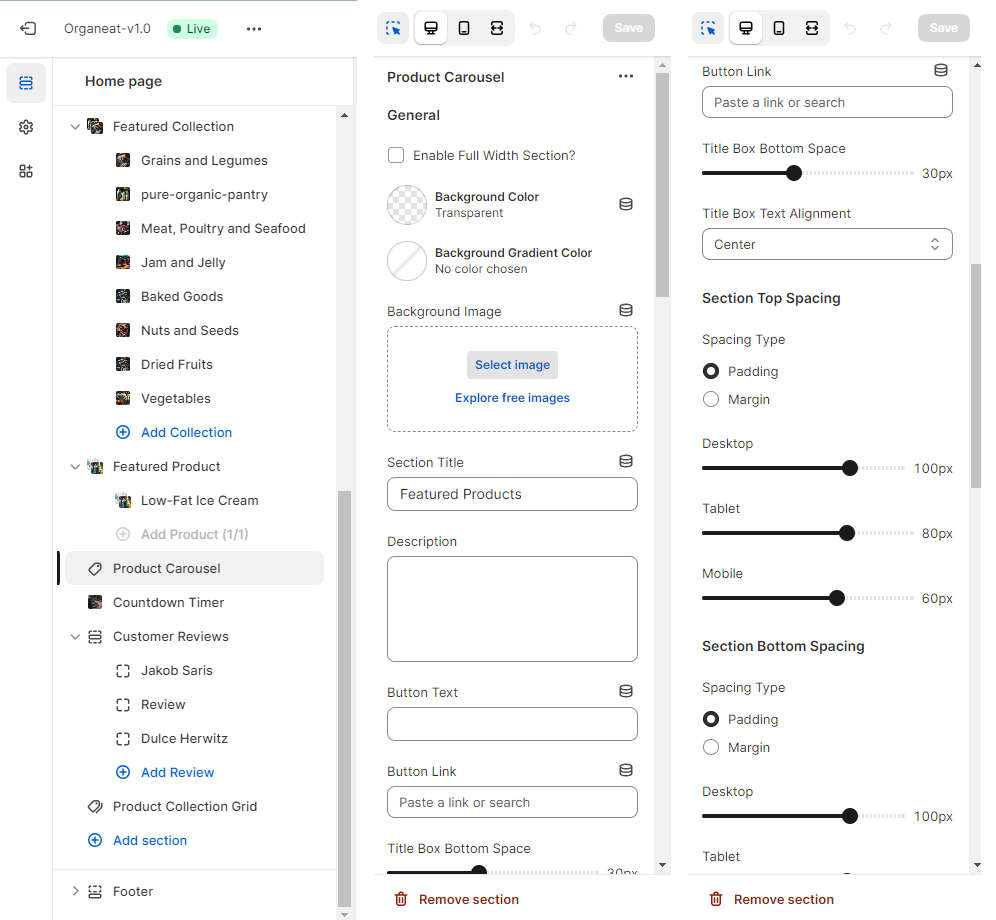
- In the Product Carousel, you can select the Background Image, Section Title, Section Title and Section spacing
- You can change the Slider Settings by Slider Autoplay, Arrow, Dots, Loop
- You can also change the Slider Sace, Animation and Slider Speed
- Click Save
Below this image shows the Content Tabs setting
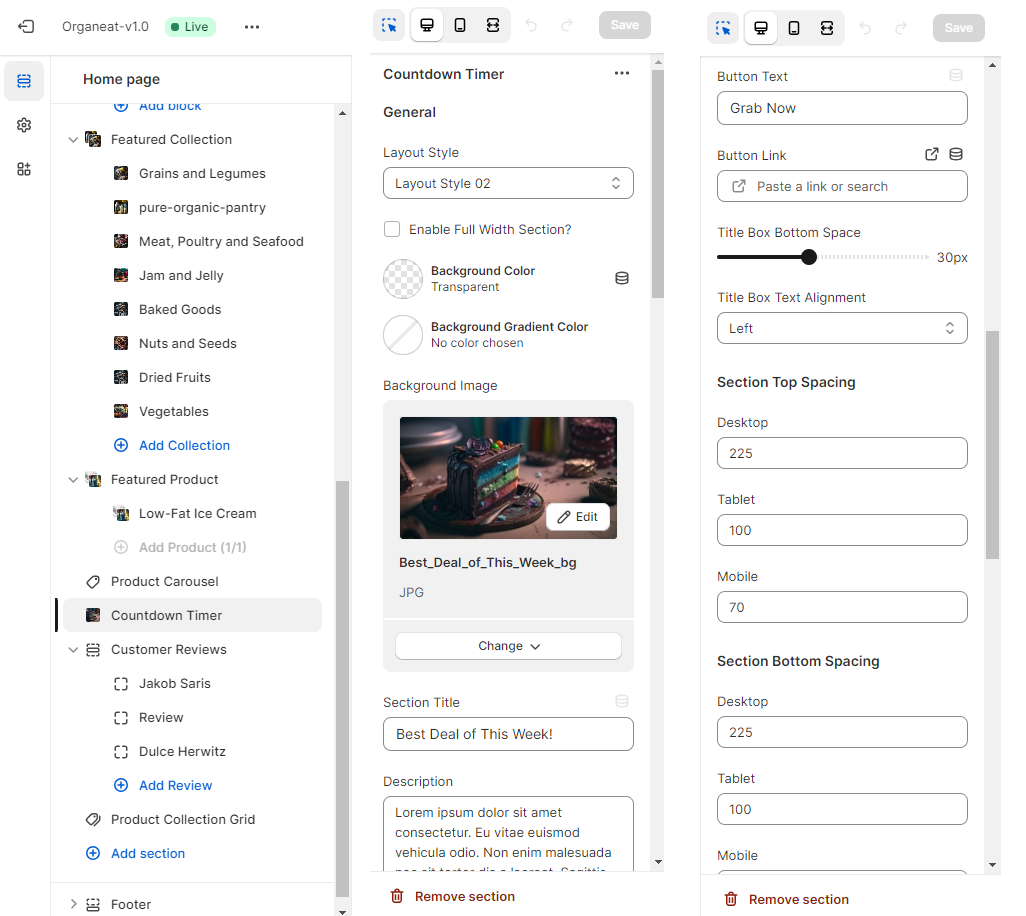
Countdown Timer

To add this section, please follow the below steps:
- From your Shopify admin, go to Online Store ➝ Themes
- Then click on the Customize button
- Click Add section and choose the Countdown timer
- In the Countdown Timer setting you can select two types of premade Layout Style
- You can customize the Countdown timer by managing Offer countdown settings, Banner images, Product settings, and Spacing
- You can add Product description, Soldout timer setting like number Of Products and hours
- Also you can change the Title box alignment
- Adjust the Title box spacing
- click Save to update the changes
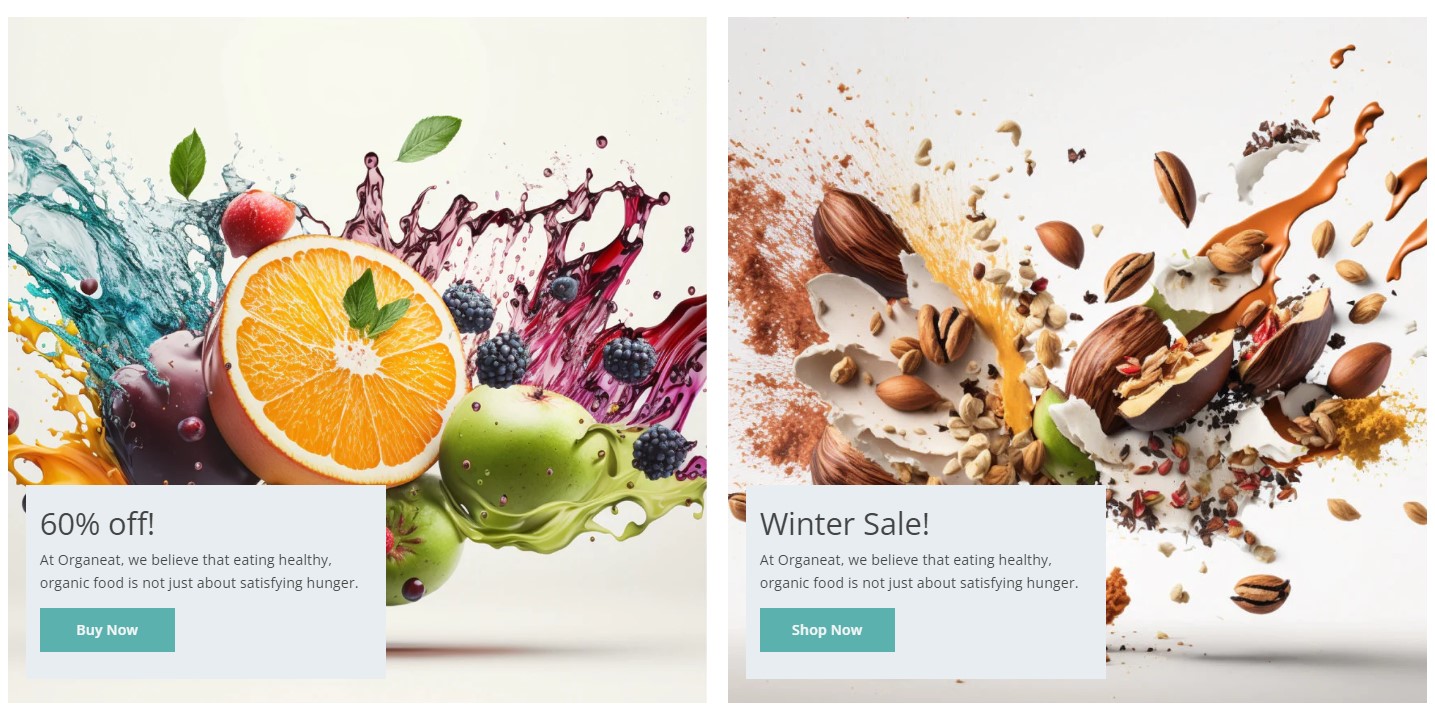
Builder
To add this section, please follow the below steps:
- From your Shopify admin, go to Online Store ➝ Themes
- Then click on the Customize button
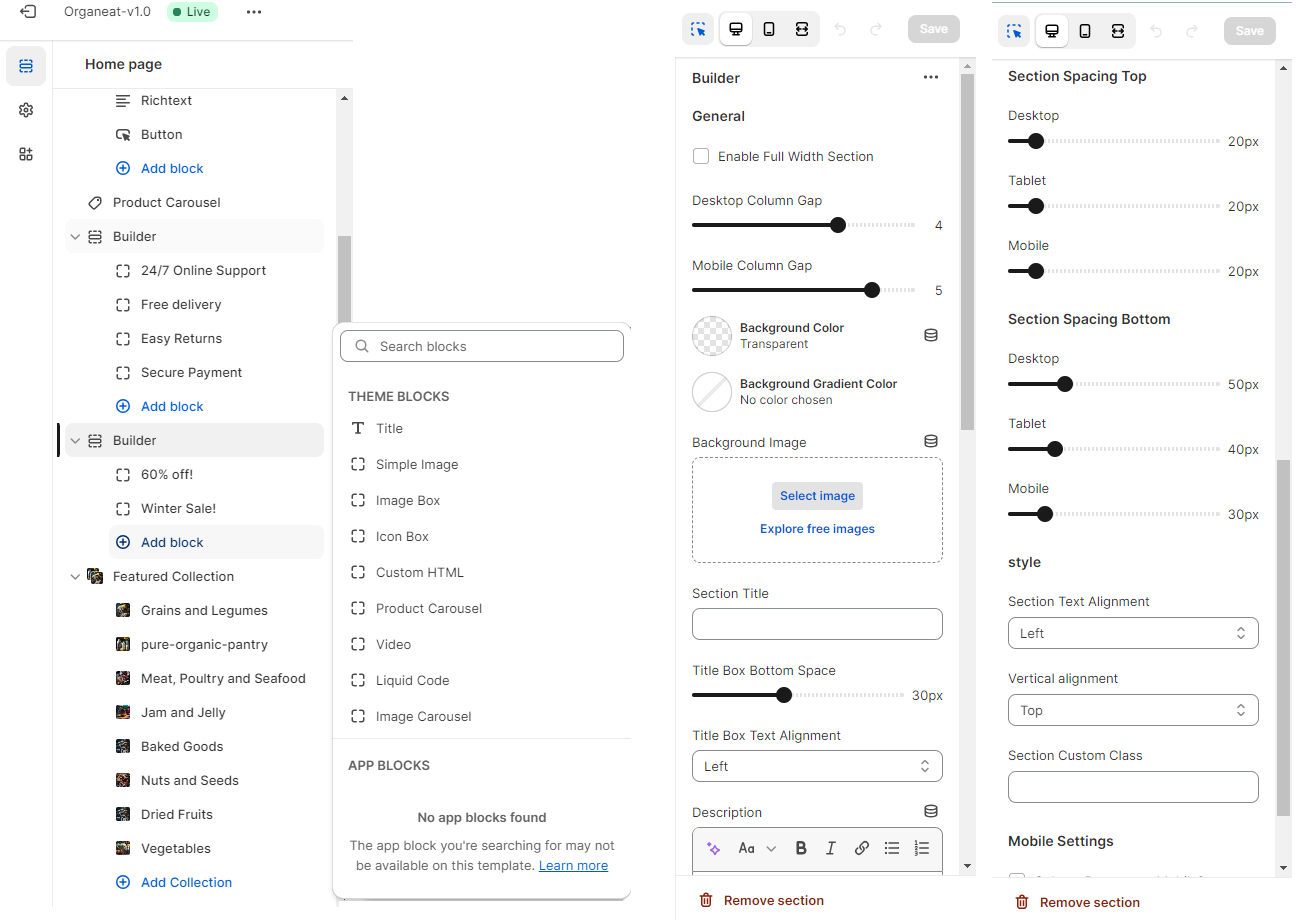
- Click Add section and choose Builder
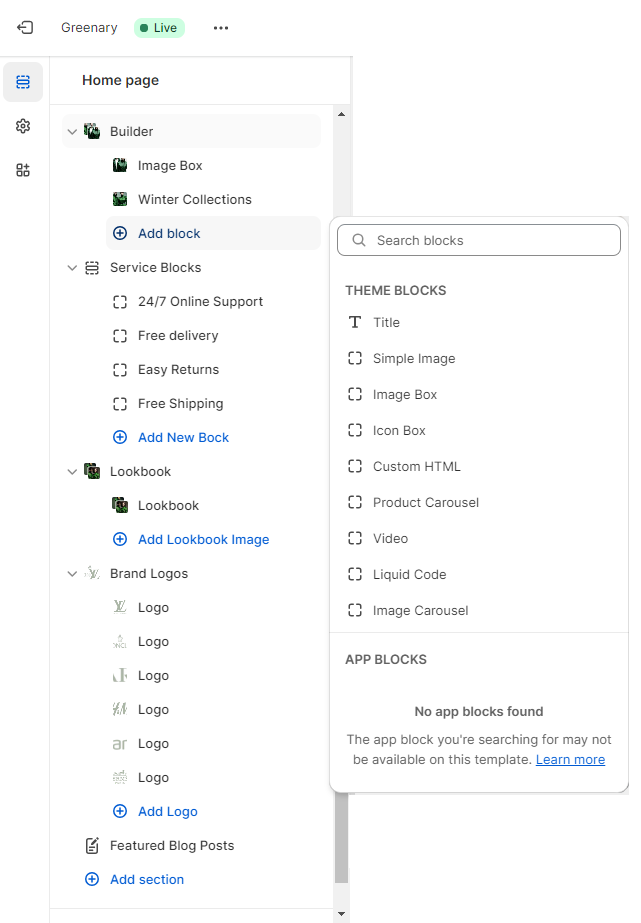
- In the Builder section, you can add several Theme blocks like Title, Simple image, Image box, Icon box, Custom HTML, Product carrousel, Image carousel, Videos, and Liquid code.
- In the different Theme blocks, you can also customize the setting as per the Theme block
- You can customize the Section block by managing Full width section enabling, Background shape position by top and bottom, Column gaps and Spacing
The following image shows the builder setting
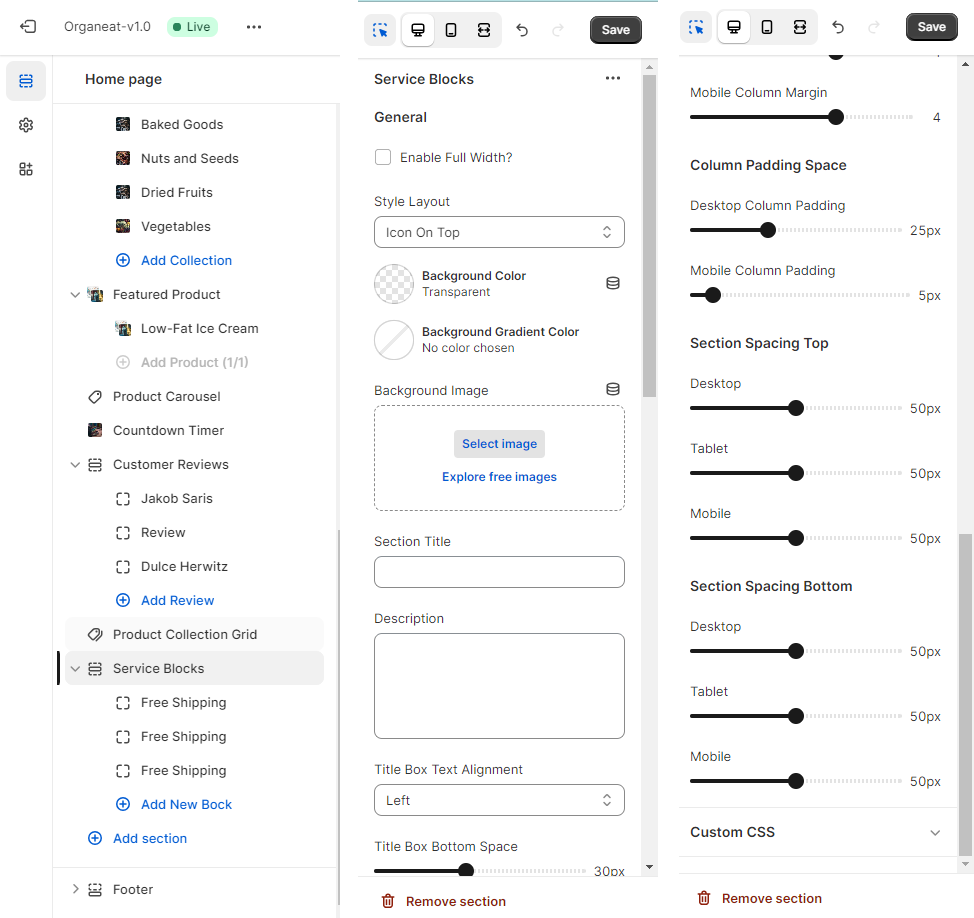
Service Block

To add this section, please follow the below steps:
- From your Shopify admin, go to Online Store ➝ Themes
- Find the theme that you want to edit, and then click Customize
- Click the Add section and choose Service Blocks
- In the Service Blocks section, you can add various service blocks
- You can customize the Service Block by managing the grid setting, column margin, and padding spacing
- Also, you can customize the icon SVG code, icon width and height, icon color, Title font size and color, and finally,the description line height and color
The following image shows the builder setting
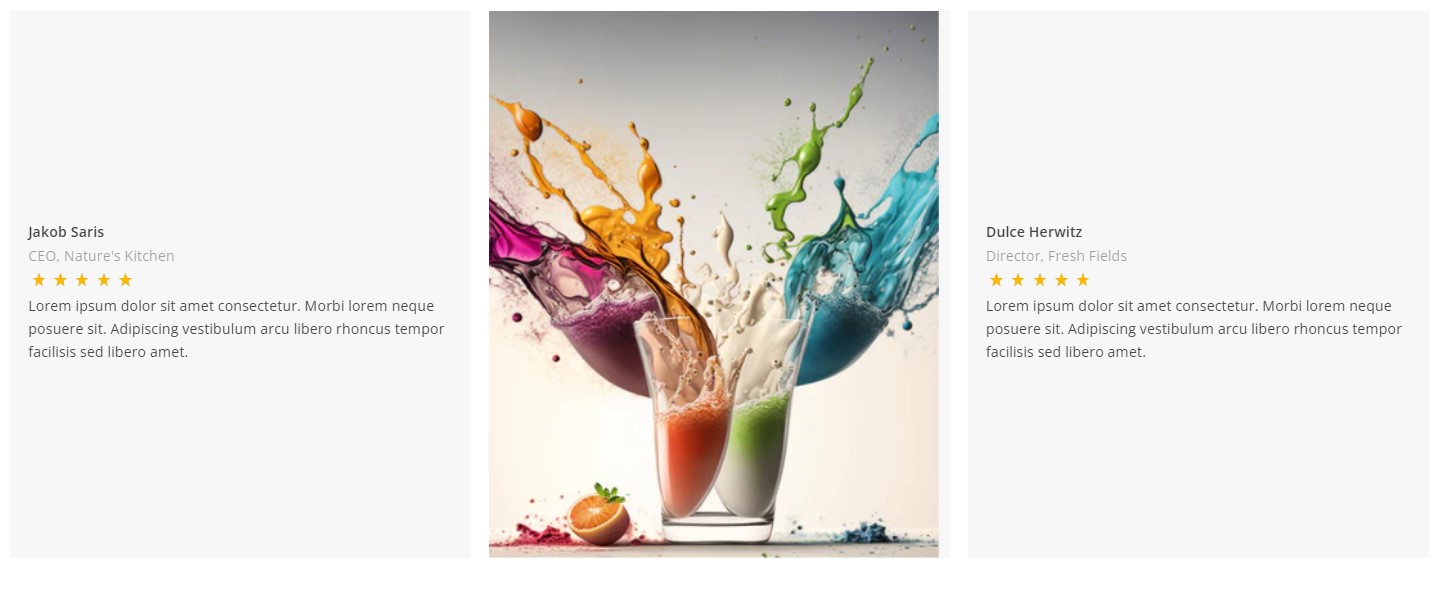
Customer Reviews
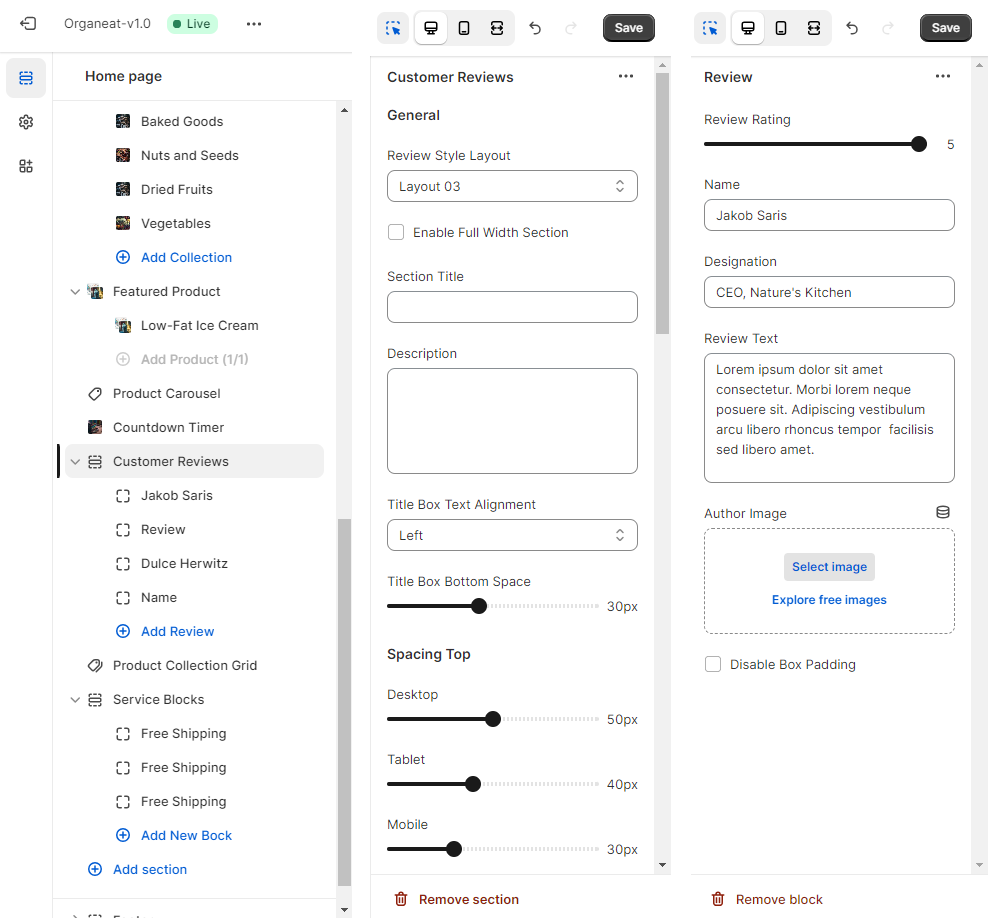
To add this section, please follow the below steps:
- From your Shopify admin, go to Online Store ➝ Themes
- Find the theme that you want to edit, and then click Customize
- Click the Add section and choose Customer Reviews
- In the Customer Reviews section you can add Review
- In the Customer Reviews section setting, you can add a Review style premade layout 01,02 and 03
- Select Item Per Row for all responsive devices, and also manage the Section spacing
- You can add the Lookbook image, Title, Title tag, and Font Size in the Lookbook Image section
- Also, you can add the Lookbook Description, Button Text, and selected Lookbook product
- Click Save
The following image shows the Review setting
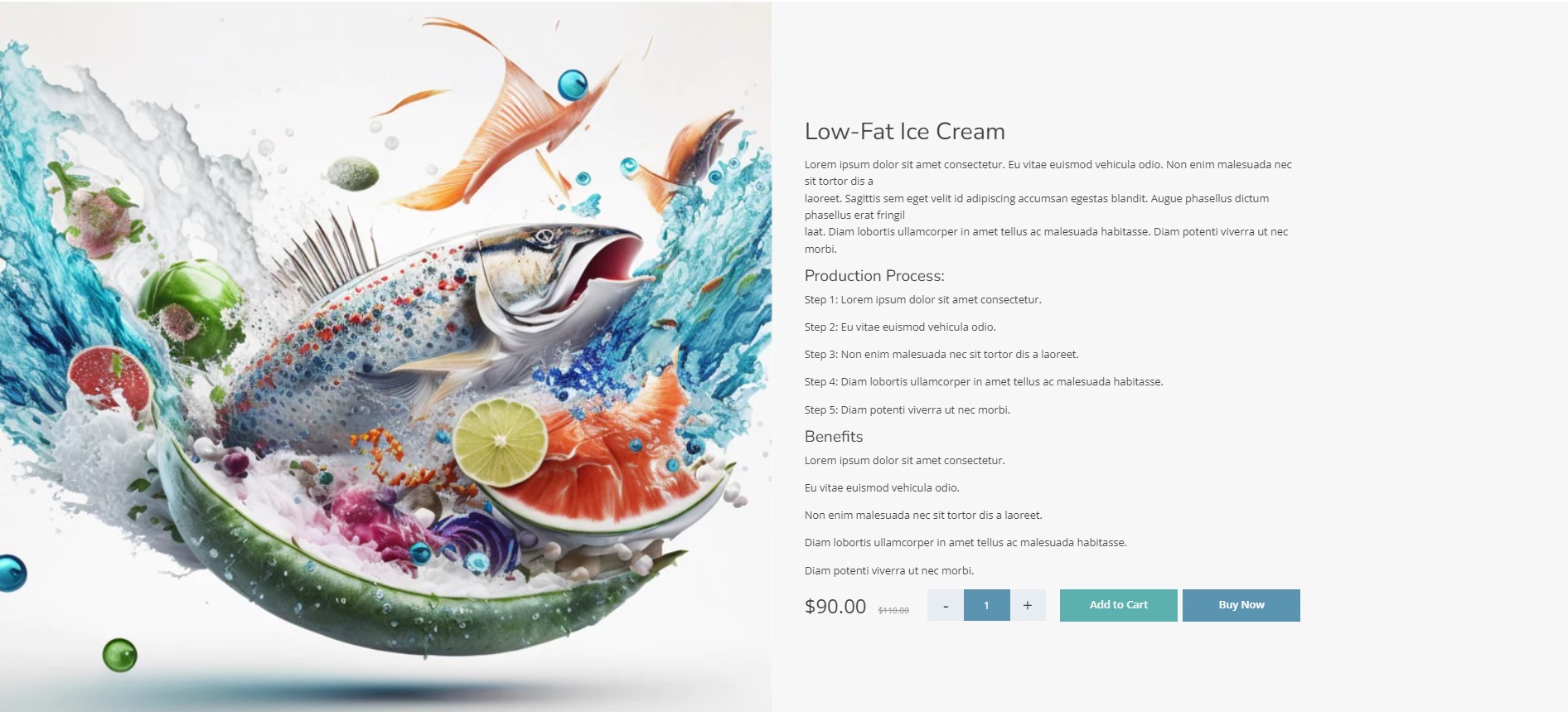
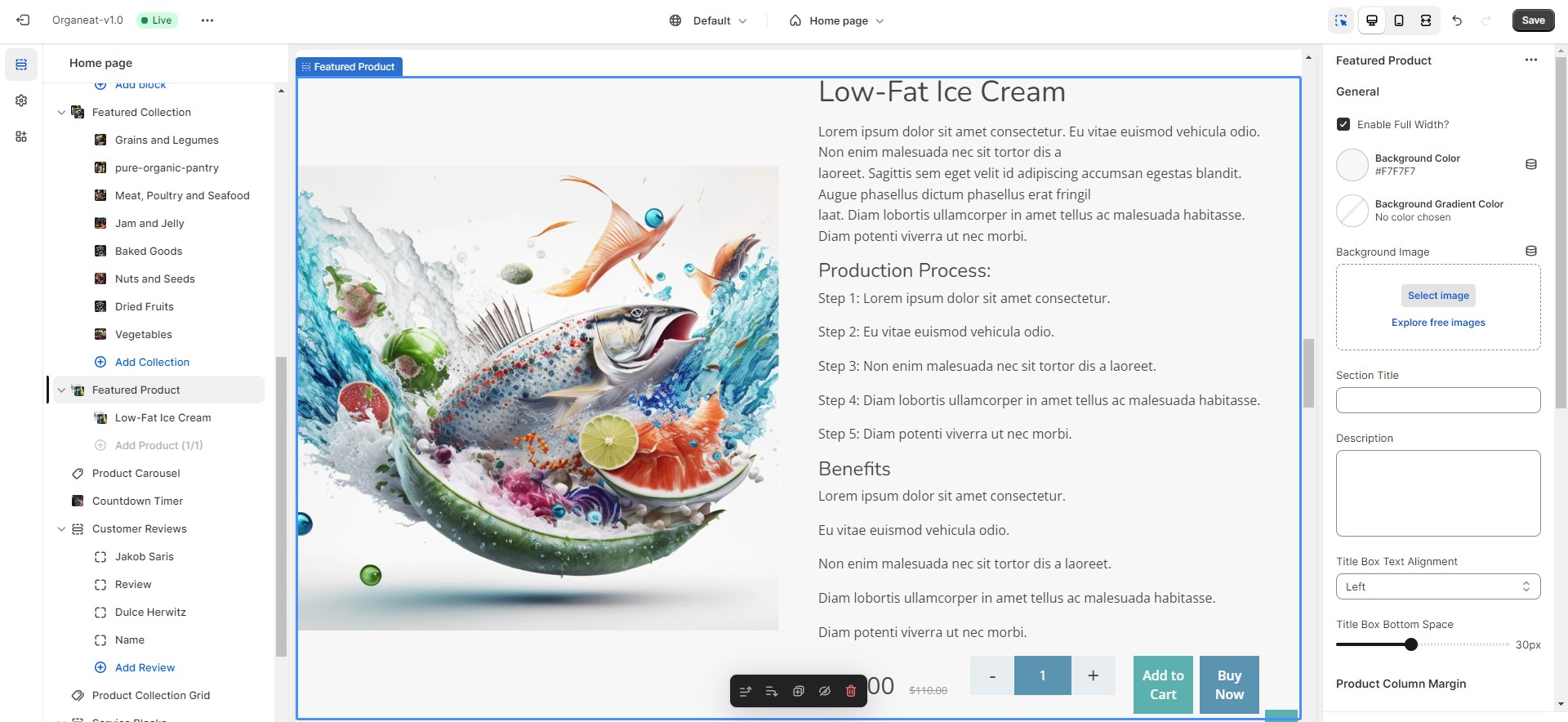
Featured Product
To add this section, please follow the below steps:
- From your Shopify admin, go to Online Store ➝ Themes.
- Then click on the Customize button.
- Click Add section and choose Featured blog posts
- Organeat allows you to select two types of premade Blog style
- You can customize the Featured blog posts by Spacing , Grid or Carousel slider
- Also you can control the Maximum number of Blog posts
- Spacing and settings for Slider transition, Arrow indicators, Dots indicators are also avaliable for customize
Sources and Credits
Organeat has used the following plugins, as listed below:
1. Bootstrap v5.2.1
- Bootstrap v5.2.1 (https://getbootstrap.com/)
- Copyright 2011-2022 The Bootstrap Authors (https://github.com/twbs/bootstrap/graphs/contributors)
- Licensed under MIT (https://github.com/twbs/bootstrap/blob/main/LICENSE)
2. Lightbox for Bootstrap 5 v1.8.3
- Copyright 2023 Travis Aaron Wagner (https://github.com/trvswgnr/bs5-lightbox)
- Licensed under MIT (https://github.com/trvswgnr/bs5-lightbox/blob/main/LICENSE)
3. Slick slider
- Copyright (c) 2017 Ken Wheeler (https://github.com/kenwheeler/slick)
- Licensed under the MIT license (https://github.com/kenwheeler/slick/blob/master/LICENSE)
4. Ajax cart API
- Copyright (c) 2023 Liquid Ajax Cart (opensource.org)
- Licensed under the MIT and GPL licenses (https://opensource.org/license/mit/)
5. Wishlist and Compare
- Copyright (c) 2021 Daniel Lerman (https://github.com/dlerm/shopify-wishlist)
- Licensed under the MIT
6. Google fonts
- Google fonts : Mali
- https://fonts.google.com/
7. Flaticon
- Copyright © 2010-2023 Freepik Company S.L. All rights reserved.
- https://www.flaticon.com/
8. Freepik
- Copyright © 2010-2023 Freepik Company S.L. All rights reserved.
- https://www.freepik.com/
Knowledge Base
Full Documentation of Shopify for your reference: https://help.shopify.com/en
Theme Support
Numerous fundamental and complicated questions have been answered in this documentation. Therefore, kindly go through our documentation first. If it’s not too much trouble, read it cautiously and follow the steps from start to finish. You will be able to track down the nitty-gritty guidelines to set up components in the theme.
Our item support includes:
- Answering queries or issues in regards to the theme and its elements
- Giving updated versions to guarantee that the theme works well
- Fixing bugs and reporting issues
We will make an honest effort to answer your messages right away. We will try our best to reply to your emails promptly to remove any confusion related to the theme’s features and address any issues.
- We will reply to your email regarding theme features and issues within 24 hours
- Regarding emails about template customization, we will reply to you within 48 hours (but normally much sooner)
- Based on the nature of the issues, requests, or questions, sometimes it may require more time than usual
DON’T FORGET TO RATE OUR WORK.
Your ideas and suggestions are highly valued and assist us in making better products. Thank you, and have a great day!
Social Media
Social Media allows adding social media links to your website.
Please follow these steps to add your social media links: